Lab 05 - Copy Job
One of the newer ingestion methods introduced with Microsoft Fabric is the Copy Job. Its provides a no-code tool to copy data from a variety of sources into a Lakehouse, Warehouse or Database. It also includes multiple write methods including full copy, incremental copy and overwrite or append.
For this workshop we are going to get CopyJob to combine the sales files.
Microsoft Learn What is Copy Job
Create Copy Job
Copy Job comes under the Get Data task so that is where we start.
Instructions
- Click New Item in the Get Data task.
- Select Copy Job from the panel on the right.
- In the New Copy job dialog enter in a meaningful name
- Click Create
Building a copy job is done via wizard steps. They are straight forward but in my experience if it goes wrong, don't try to fix it, just start again.
Data Source
The first steps in the wizard are to select your data source. Our data is the folders of csv files in the lakehouse.
Instructions
- In the OneLake catalog select your lakehouse.
- In the next step, select Files at the top and wait for the structure to load
- Expand the finance folder
- Tick the Sales folder
- Check the file settings, noticing it picks First row as header
- Click Next
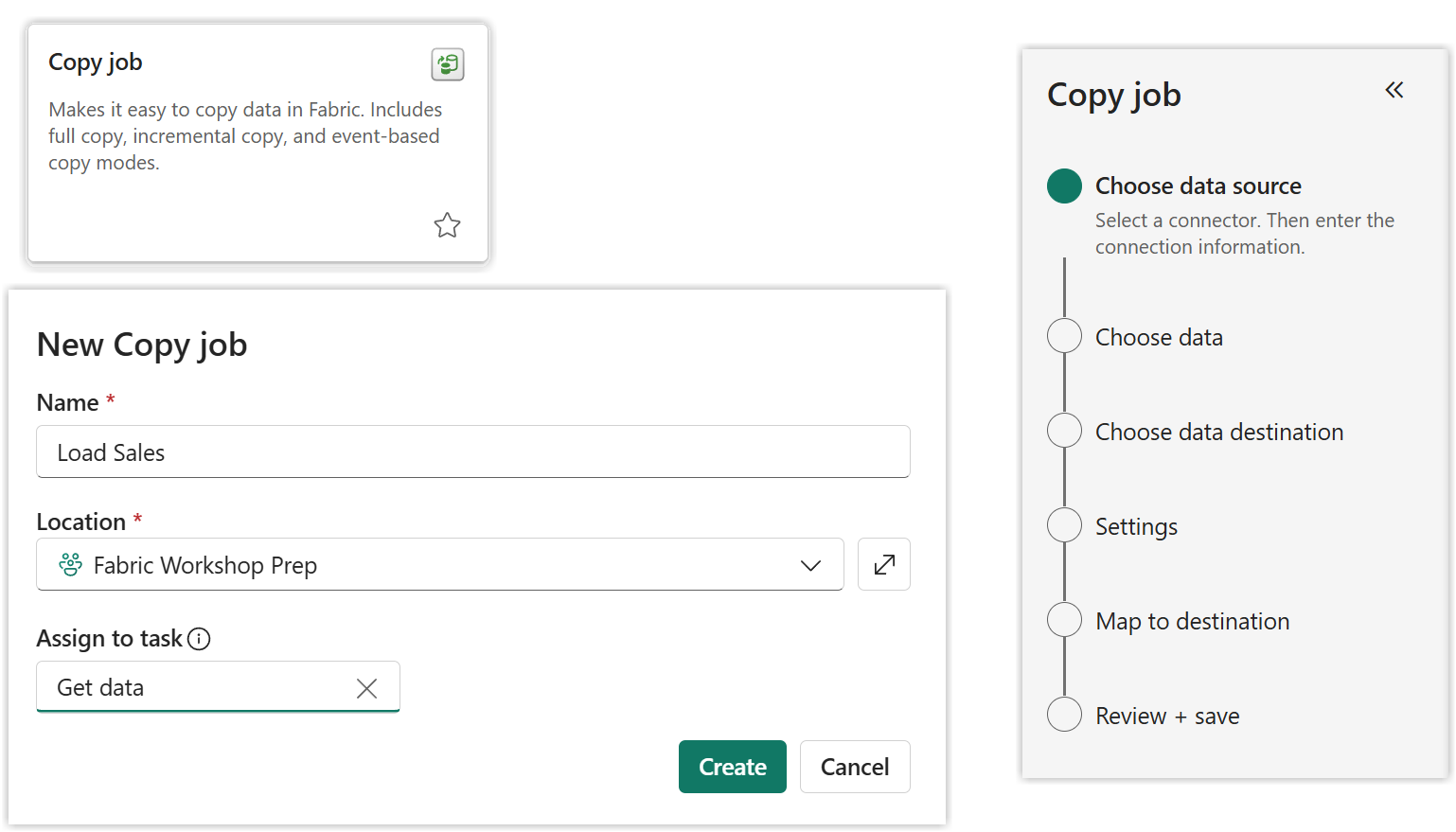
This completes the first 2 steps in the wizard.
Destination
The next steps are regarding the destination of the data.
Instructions
- Same as you did for for source, from the onelake catalog select your lakehouse
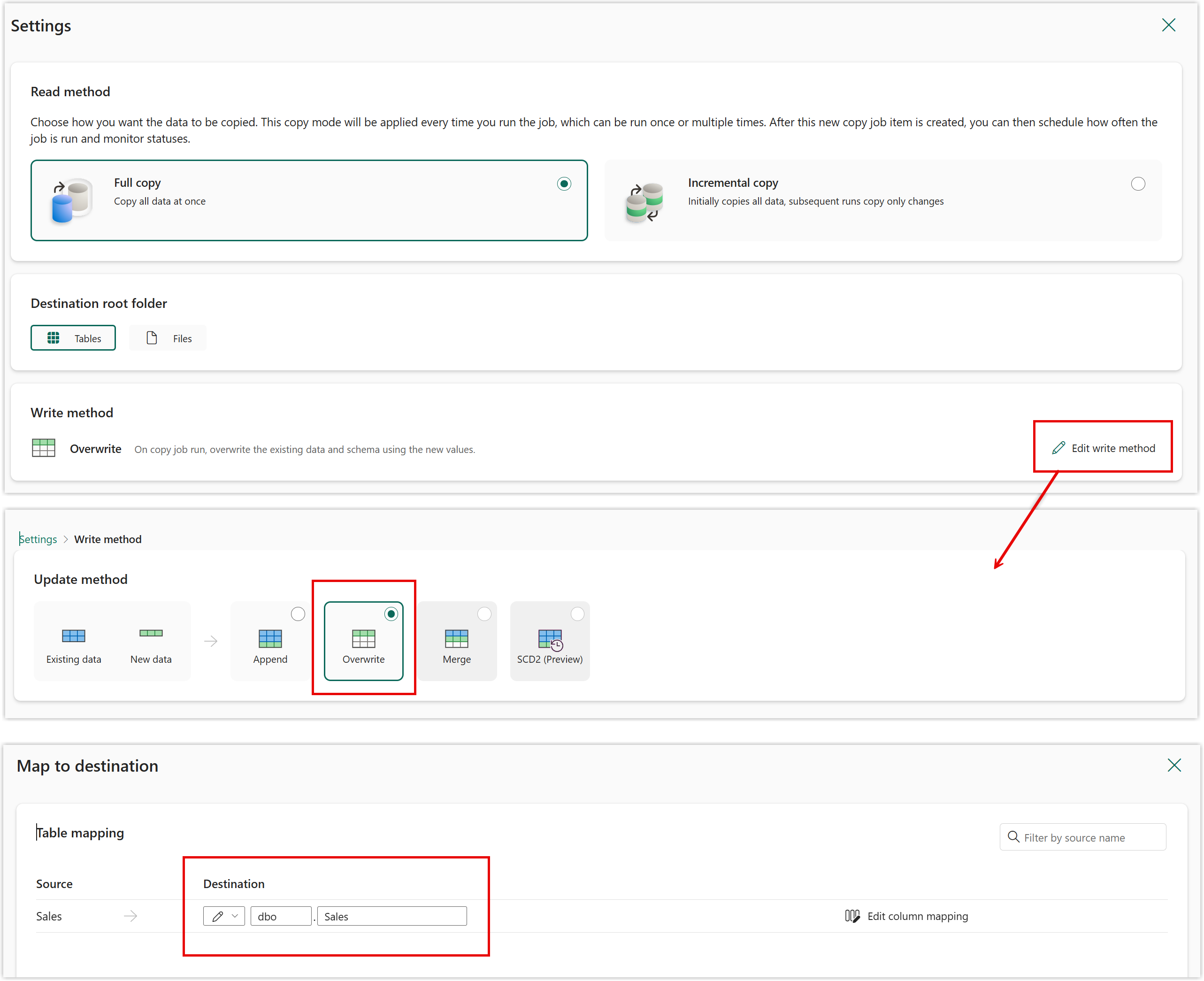
- For the read method stick with Full Copy
- Destination root folder can be left as tables
- The write method needs to be changed, so click on Edit Write method
- Then select Overwrite and click Next
- Check the name of the table and the mappings
- Click Next
Executing the Copy Job
The final step is to review the settings and run the copy job.
Instructions
- Check the details
- Decide on the Start data transfer immediately
- Change run options to Run once
- Click Save + Run
Lab Complete
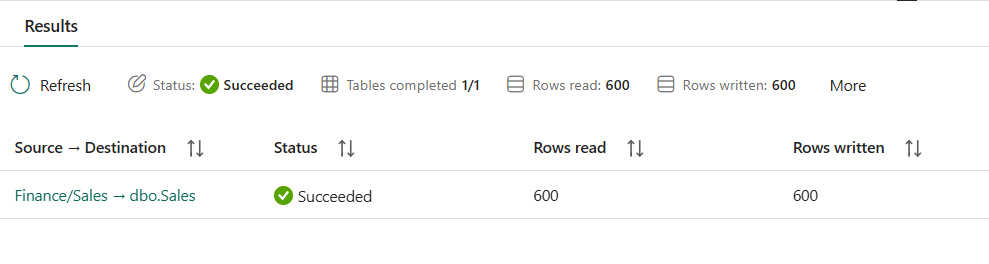
The Copy Job will take a moment complete and will show a status of Complete.