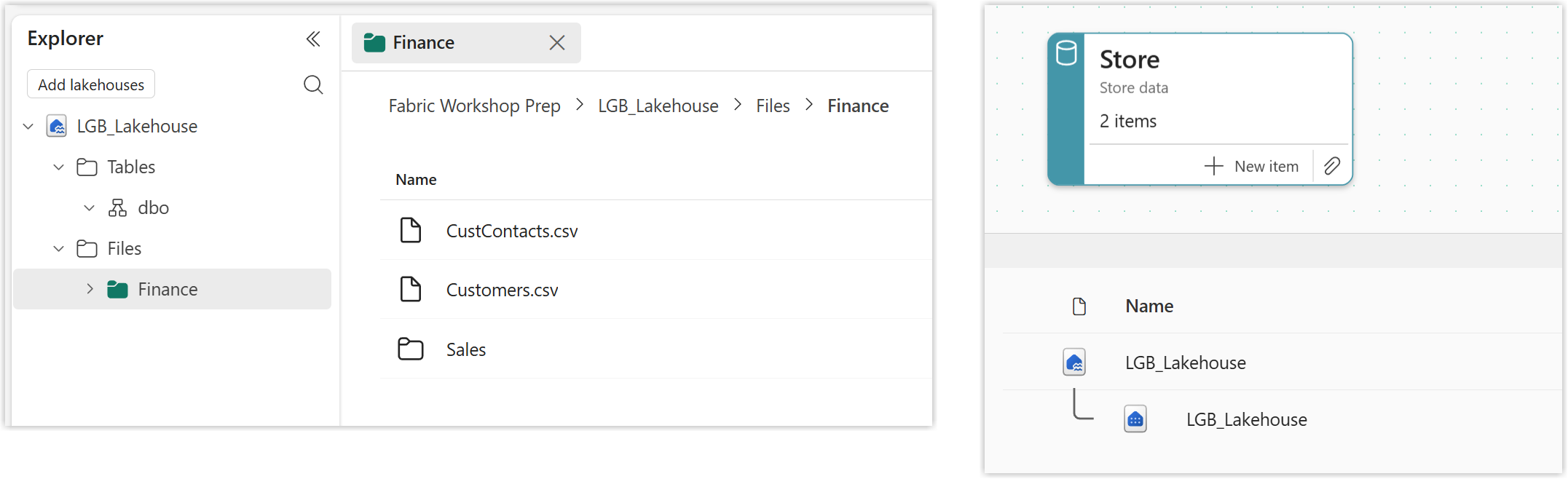
Lab 02 - Lakehouse and Files
In this lab we will create a Lakehouse and load files and a folder. We will create one table and explore the SQL Endpoint.
This lab assumes you have completed Lab 01 and have a workspace with a taskflow.
Create a Lakehouse
There are a long list of different artifacts available to create in Microsoft Fabric. One of the advantages of using tasks in a task flow is the list of options offered can be limited by the task.
A lakehouse is a place to store structured and unstructured data in tables and files. So it belongs in the Store task.
Instructions
- On the Store task click on + New item.
- From the panel on the right, select Lakehouse.
- In the New Lakehouse dialog, enter in a name for your lakehouse. Make sure it is meaningful and it cannot contain spaces.
- Click the Create button to create the lakehouse
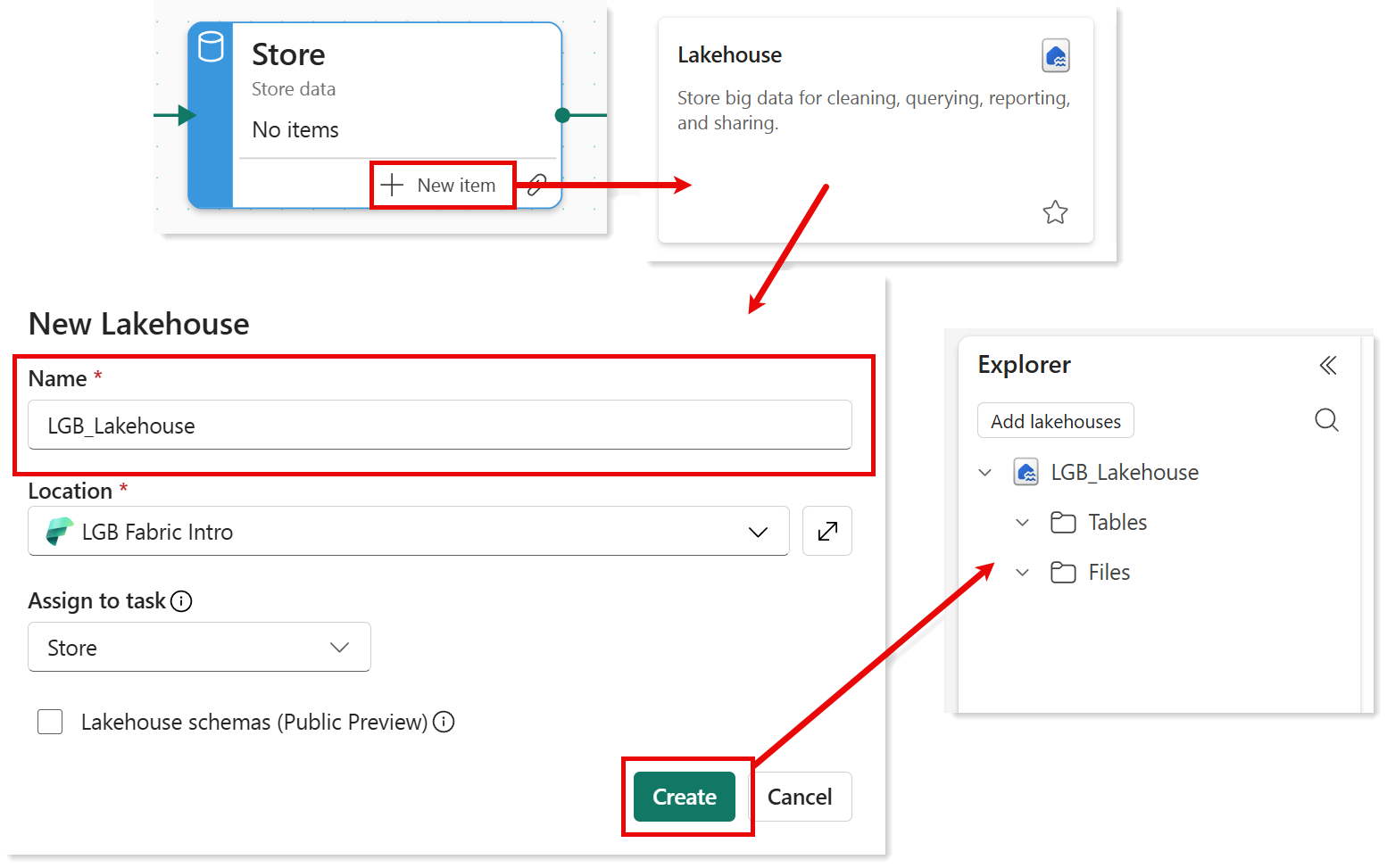
In the Explorer pane on the left of your lakehouse you can see the 2 top level folders. Tables will contain the structured data in separate tables. Files can contain folders and files. We will start by loading files.
Lakehouse Overview on Microsoft Learn
Load Files and Folders
In our scenario the finance system exports csv files for the list of products, customers, customer clients and monthly sales. The customers and contacts are single files, the monthly sales is a folder of files, one per month. The products file we will down load from a central source. The following section will walk through loading those files into the lakehouse ready to ingest.
Creating Folders
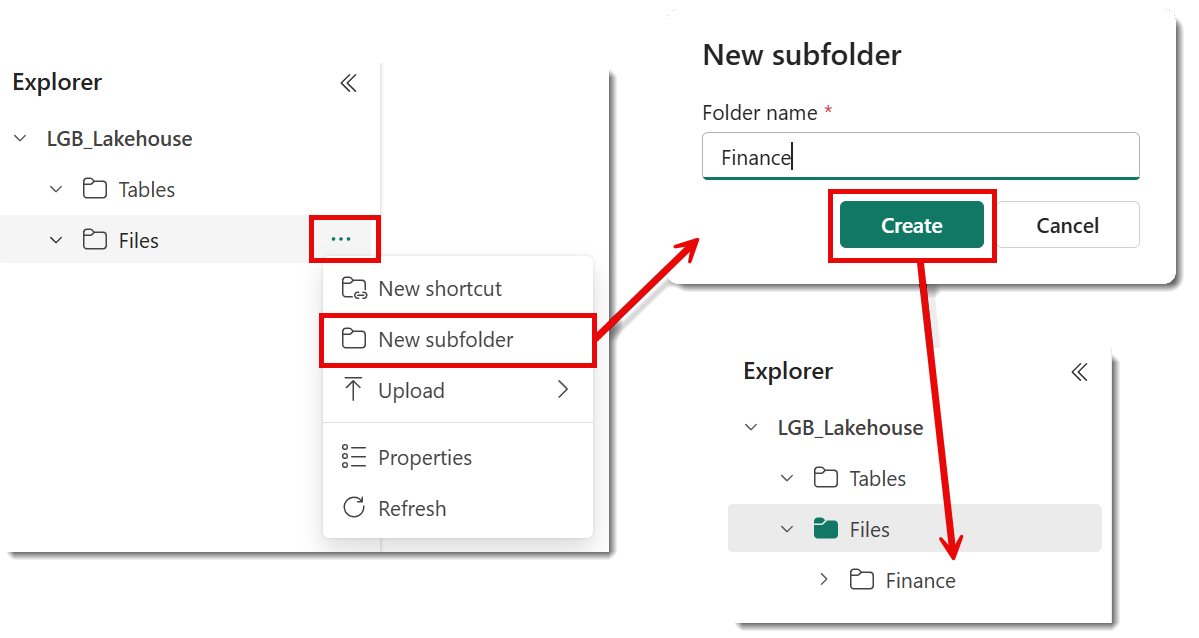
Your lakehouse might have many files being loaded from different systems, so for the sake of future us we will create a sub folder for the Accounts files.
Click on the three dots next to Files, to reveal a menu. From the menu select New Folder, then type in the folder name. Click Create to create the subfolder.
Load Individual Files
In the data folder of the workshop files there are two csv files, customers.csv and clients.csv. We are going to load these files into the lakehouse.
Instructions
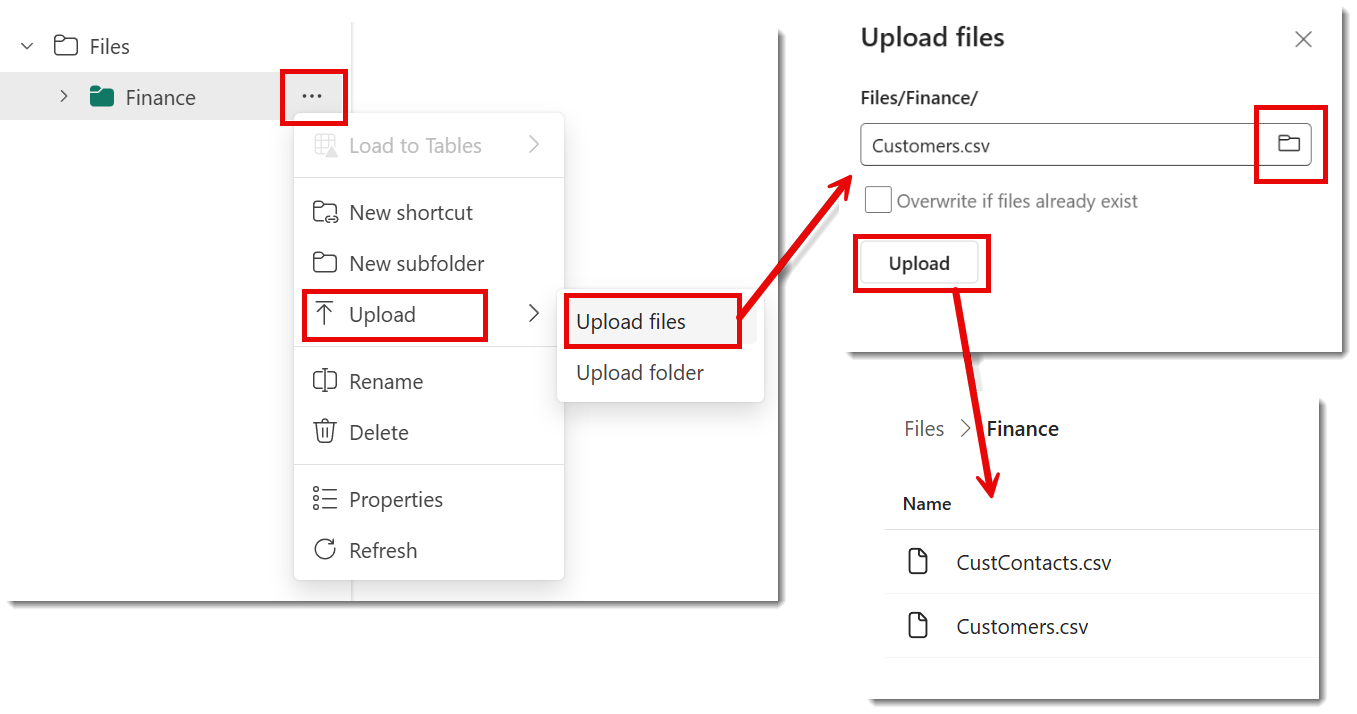
- On Finance Folder, click on the three dots.
- From Upload, select upload files
- Click the folder button and find the three files to upload.
- After you click Open, the files will be listed. Then click Upload.
- Once all the files have green ticks, close the pane. Then click on Files to see your files listed.
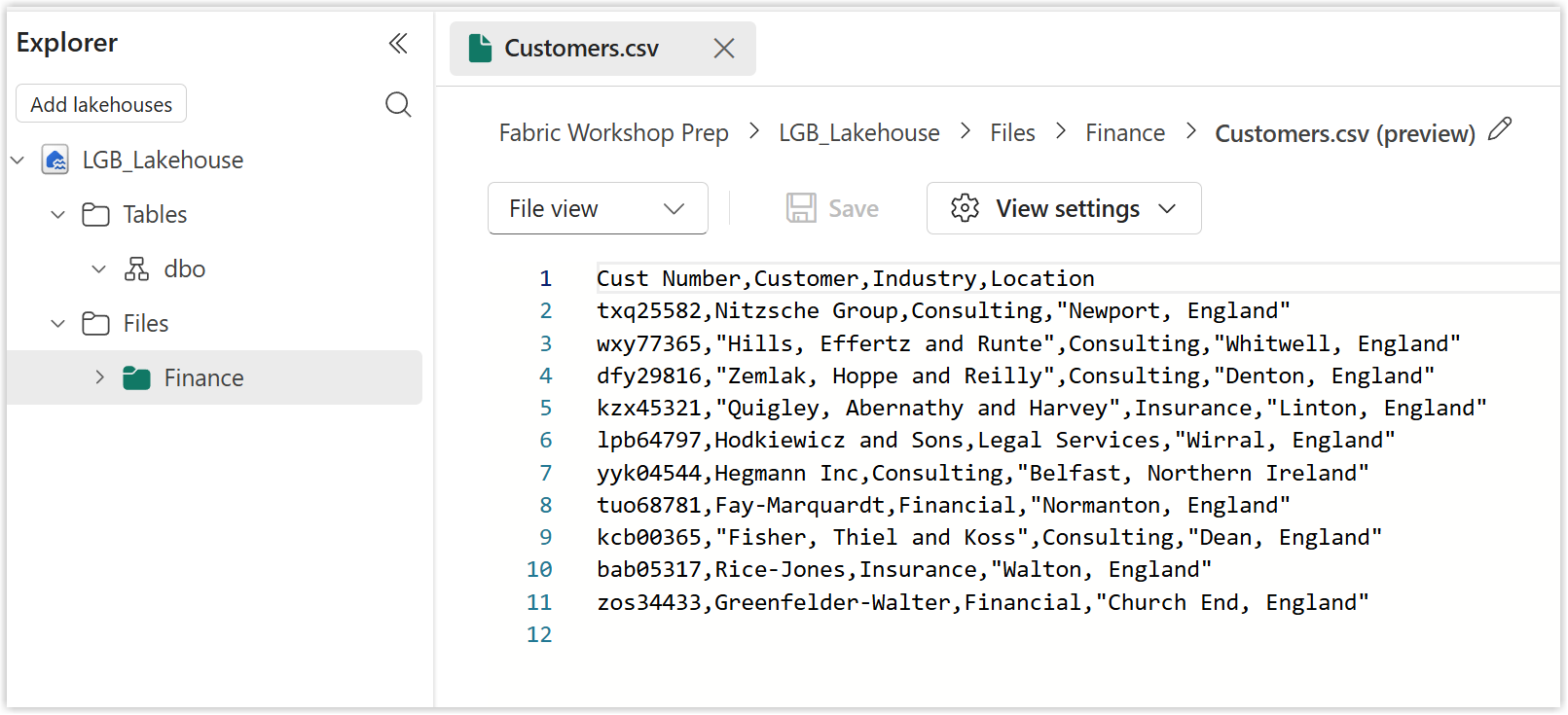
CSV files are a simple enough structure that the lakehouse can display the contents. When you click on a file name you can view that file in a file view or a table view.
Note
When uploading newer versions of the files you will need to tick the Overwrite if files exist box for the Upload button to work.
Load a Folder
For the invoices raised by finance we have a folder of files to upload into the finance folder. Again these will be uploaded into a table later in this lab.
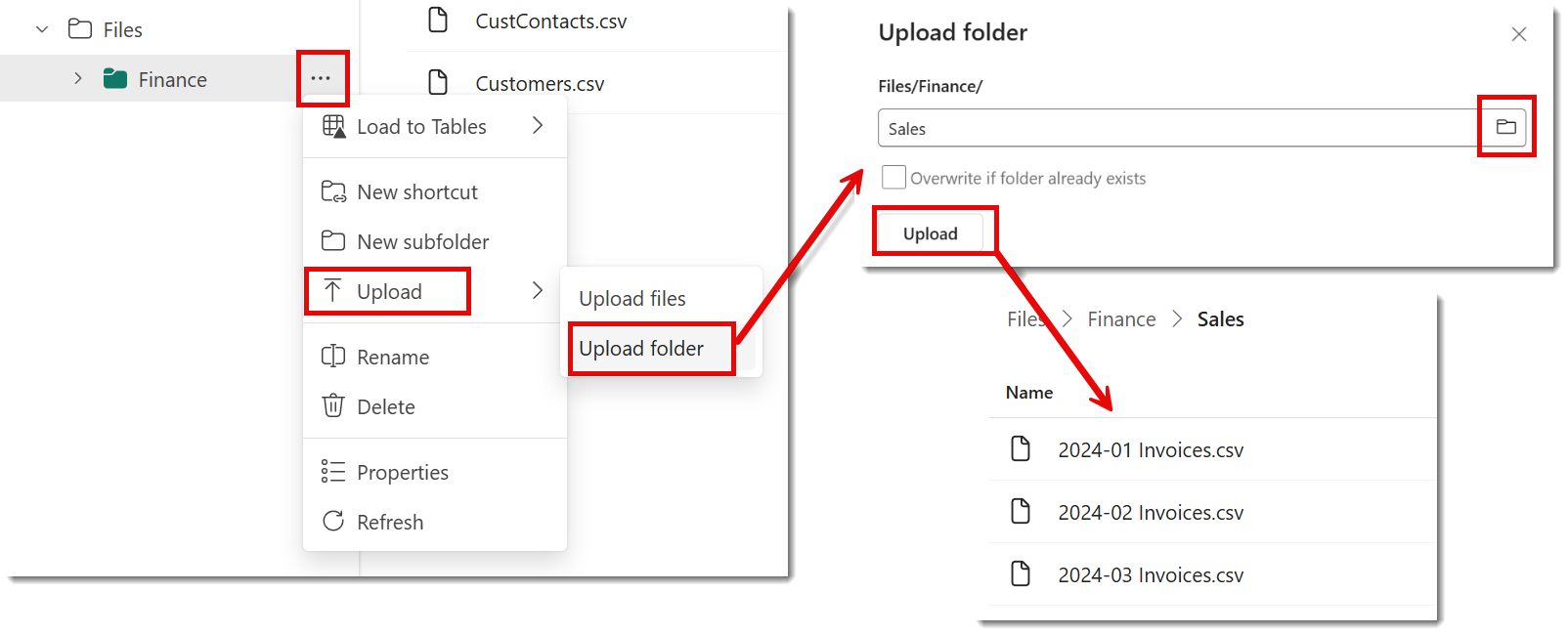
Click on the three dots on the Finance folder to show the menu. from the menu select Upload and then Upload Folder. In the Upload Folder pane on the right, click on the folder button and select your folder. It might give you a do you warning asking if you trust the contents of the folder, click upload to say yes. And finally click upload to create the folder and upload the files.
Lab Complete
At the end of this lab you have a lakehouse that contains csv files. The next lab will start to lod those files into tables.