So you’ve done the hard work of building a variable library to make all your Fabric artifacts not have hard coded values. This was promised to be the prep work for making deployment pipelines easier. So lets take a look how that works.
Variable Library Series
Variable libraries should be part of every project. This post is part of my series to help get you started creating the library and then using the variables and finally seeing your hard work pay back when it comes to deployment pipelines.
- Getting started with variable libraries
- Variable Values in a Fabric Notebook
- Variable Values in a Data Pipeline
- Variable Values in Lakehouse Shortcuts
- Variable Values in Dataflows
- Variable Libraries in Deployment Pipelines
- Create a Variable Library using a Python Notebook
Scenario
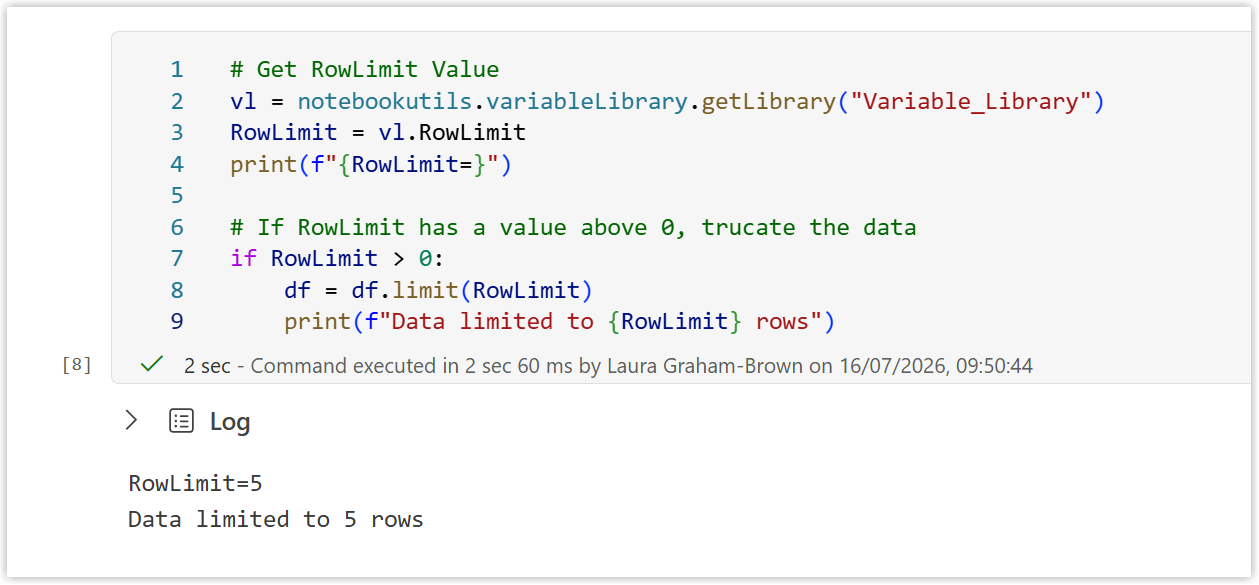
For this post we are keeping the example very simple. We are building a process that ingests data from a file into a table. As part of that process the data is loaded into a dataframe called df. The variable library includes a RowLimit variable. If the RowLimit is 0 load all the data, otherwise trim the data to that many rows. This means in dev we can limit to a few rows but in test and prod we can have all the rows. Here is the code snippet that handles that logic.
| |
Setting up the Variable Library
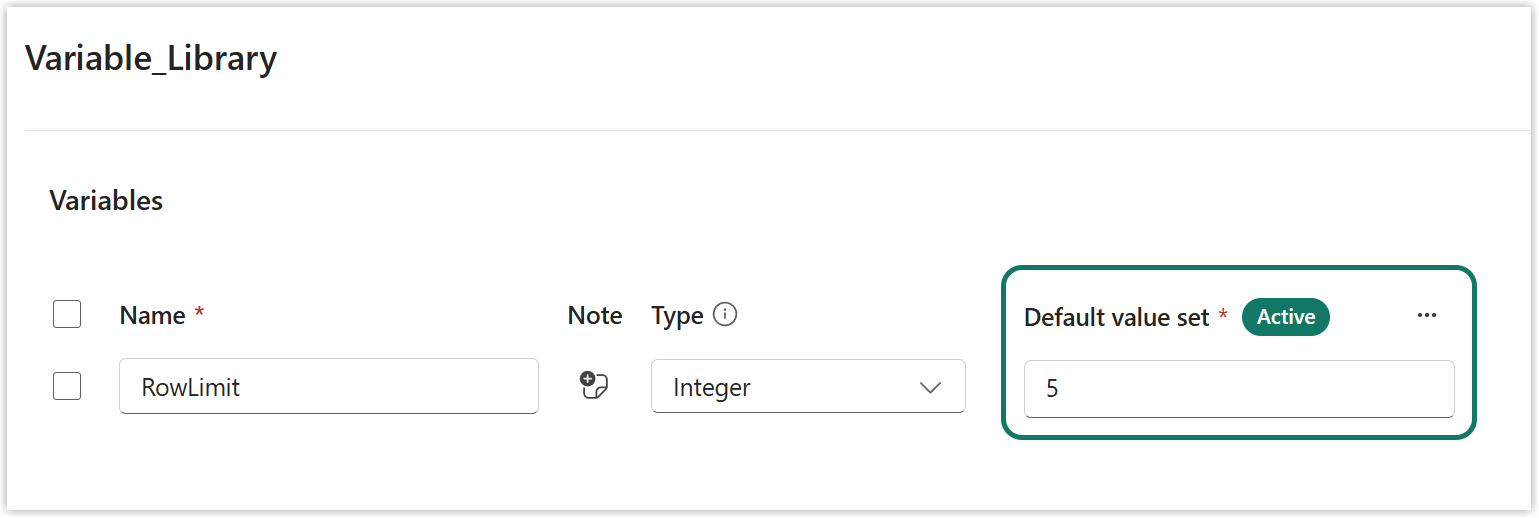
I’ve created a variable library with a variable called RowLimit that is an integer and has a value of 5.
When I run the code we get this
Testing for zero
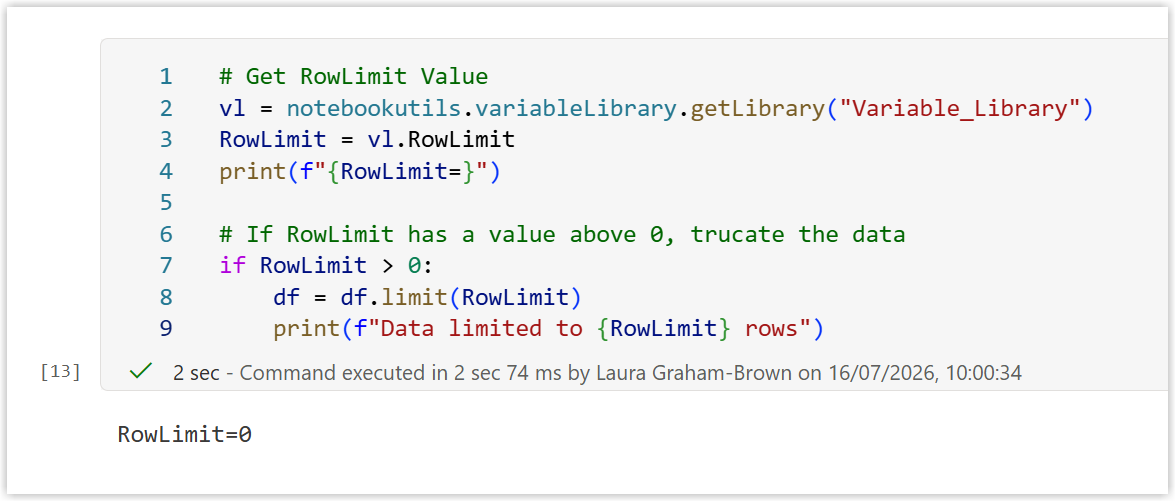
However confident we are on the logic we should test for 0 working. I do and I get the expected output of RowLimit=0 and no other text and all the data rows come through.
Adding Value Sets
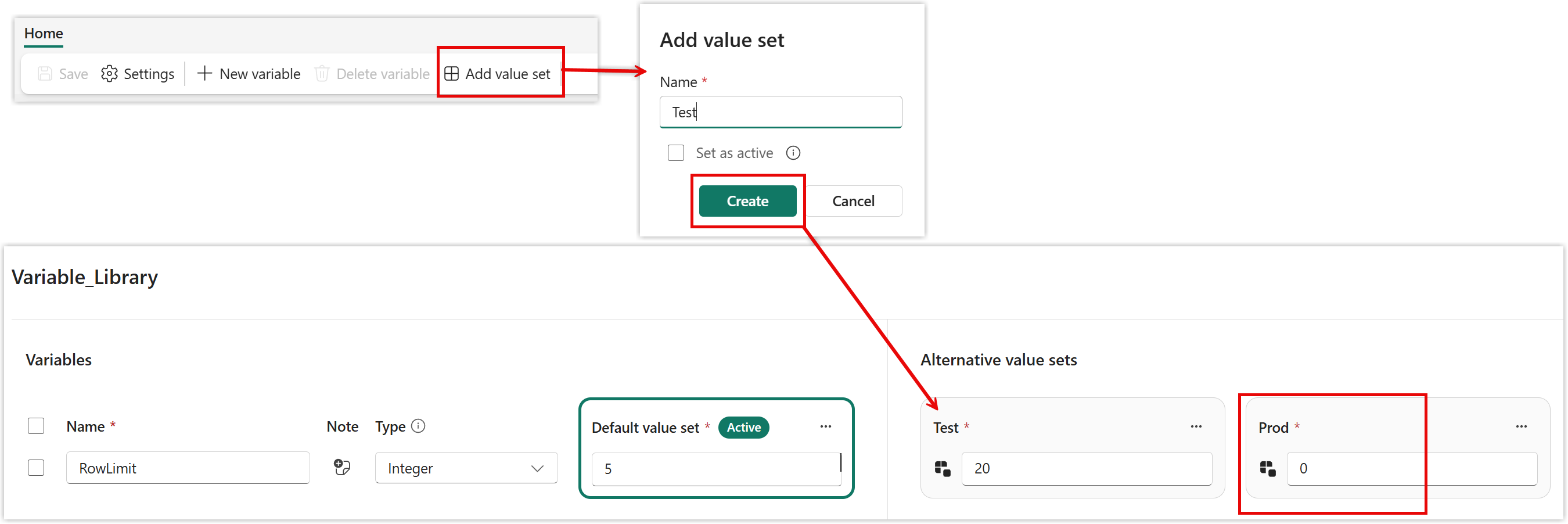
A variable library can store different values for each variable in a value set. You can add multiple value sets, usually one for each deployment pipeline stage. In my example for dev I only want 5 rows of data, in test we will look at 20 and in prod I want no limit. Yes there probably should be a UAT with zero as well… this is just a demo!
Instructions
- Click on Add value set on the ribbon
- Enter a name and click Create
- The value set appears with all the variable set to the same value as the Default value set.
- Repeat for as many value sets you need.
- Edit the values in datasets. The icon will turn black.
- If you need to reset to default click on the black icon
- Click Save and Agree if a warning appears.
Deployment Pipeline
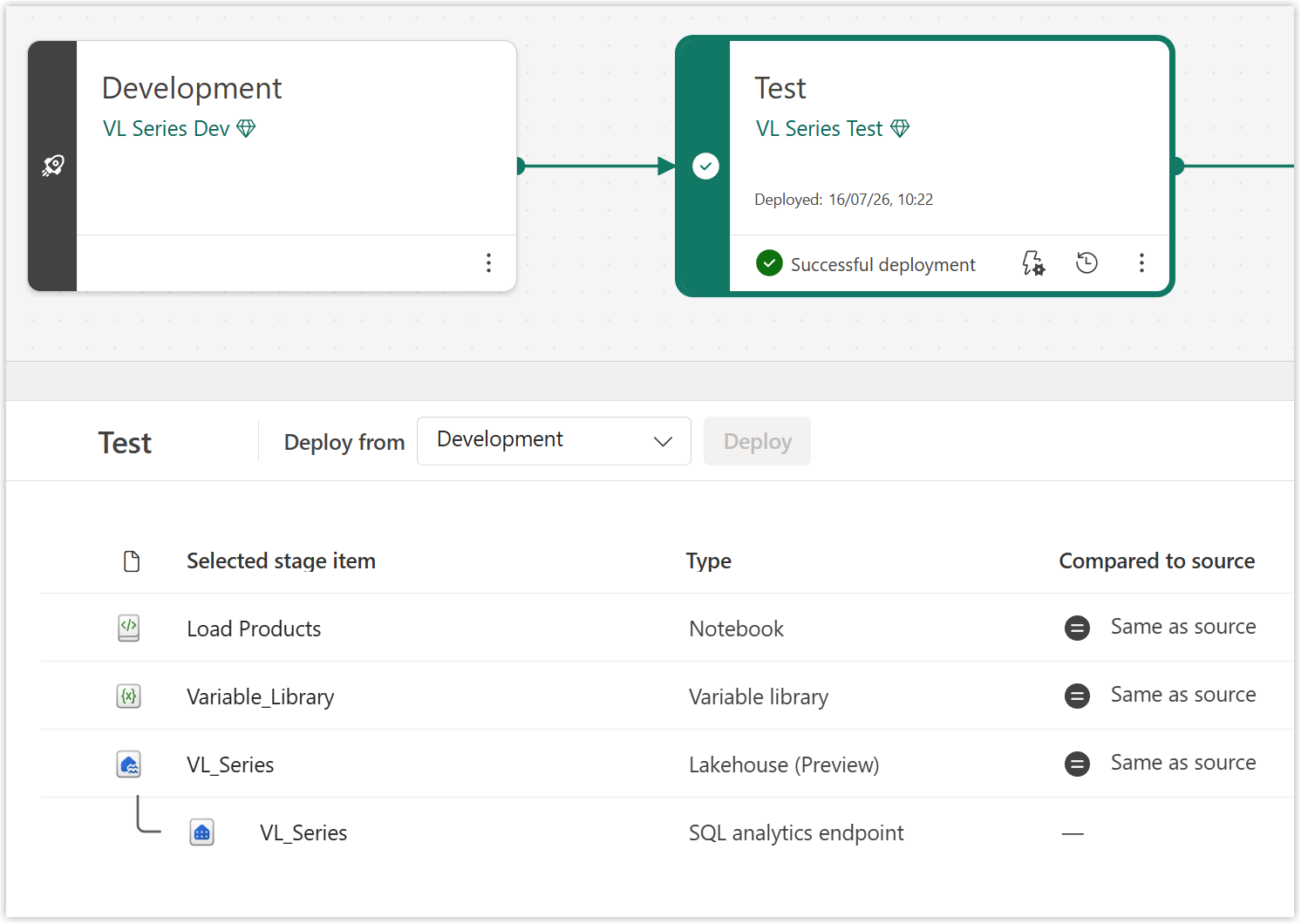
I’ve created a deployment pipeline and deployed to Test.
Changing Active Set
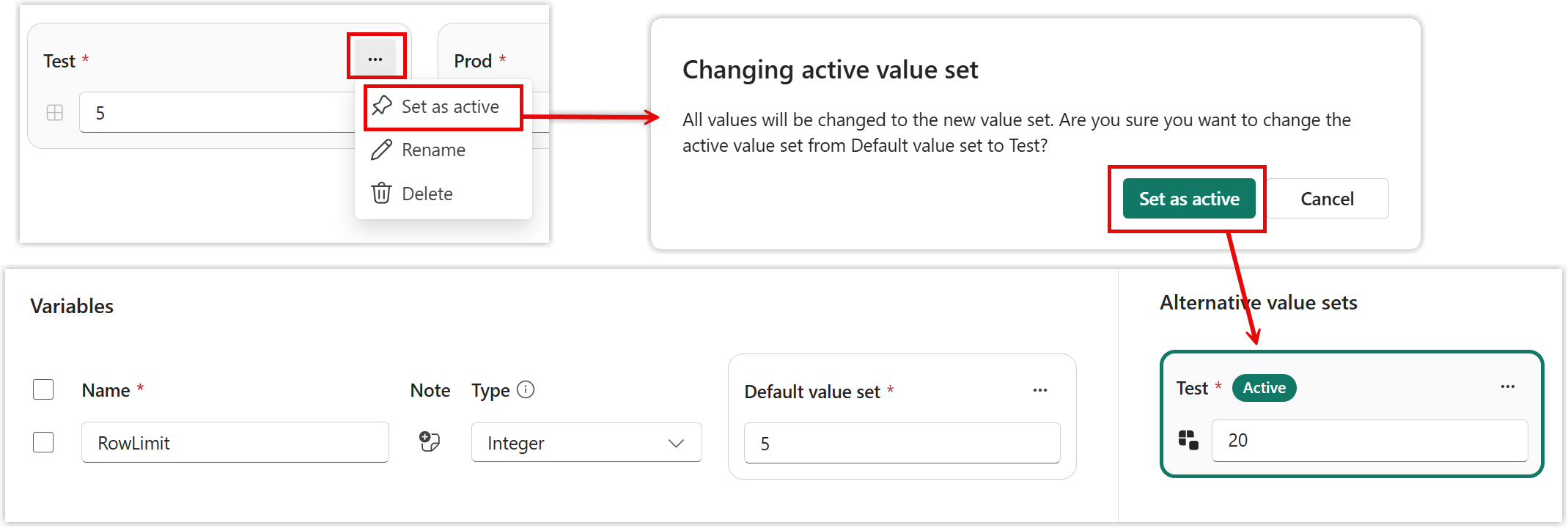
In order to use the different values for Test and Prod I need to change the active set in the variable library in the workspaces.
Instructions
- Go to the Test workspace
- Open the variable library
- Click on the three dots on the Test set and select Set as active from the menu.
- In the confirmation message that pops up, click Set as Active
- not the active badge moves and the test set has a heavier border
- Save the variable library
The pipeline does not notice the change and any updates to the variable library from deploying from dev do not reset the active set.
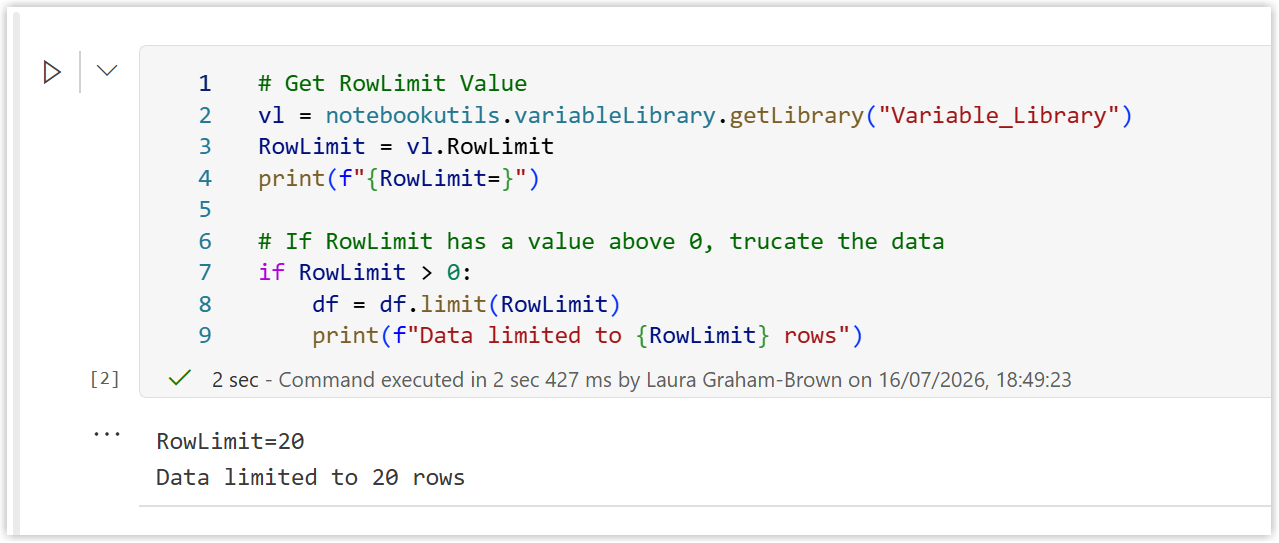
If we now test the notebook in the test workspace we get 20 rows coming through because of the different value in the library.
TipAlways change the variable library values in your dev workspace and deploy the changes through the pipeline.
Conclusion
This is the big reason Variable libraries are a must have in Fabric solution development. Even if you don’t use deployment pipelines it is sometimes useful to be able to swap values.