
Introduction
There are times to avoid capacity issues you need to automatically move a workspace from one capacity to another. Situations could include a capacity getting close to capacity, a new capacity becoming available or a scheduled peak activity that requires a standby capacity being used.
Scenario
I have 2 capacities that are in the same region. There are restrictions on moving regions that are detailed here https://learn.microsoft.com/en-us/fabric/admin/portal-workspace-capacity-reassignment#restrictions-on-moving-workspaces-around I am admin of the workspace and the capacity I am assigning the workspace to, or I could just be Fabric Admin.
Create the Flow
This flow is going to be a child flow so that it can run as a once off and be called as part of another process. I wrote a blog post back in 2022 regarding the requirements of a child flow this can be found here
The action we are going to perform is a rest api call to Fabric to assign a capacity. Microsoft have provided documentation.
Microsoft Learn - Workspaces - Assign a Capacity
So the information required is the workspace id and the capacity id. We will add those as parameters into the manual trigger.
Instructions
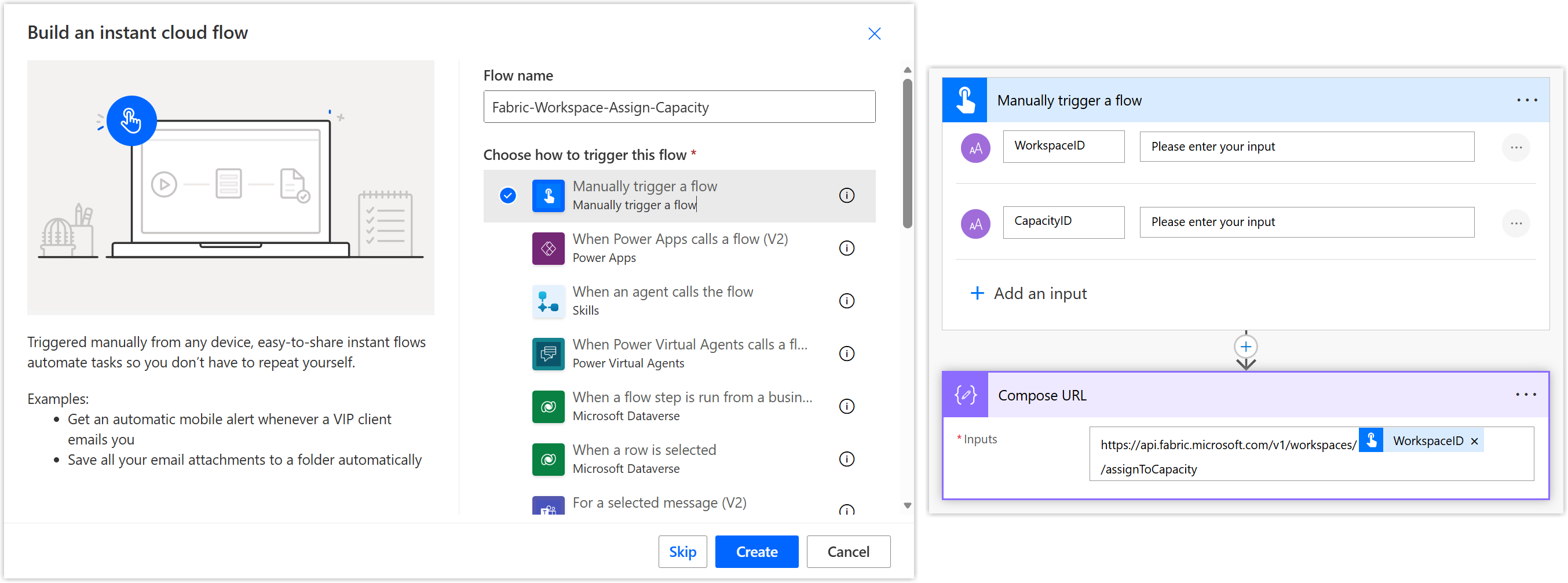
- Inside a solution, create an instant flow and enter in a name for the flow
- Select Manually trigger a flow
- Click create to enter into the flow editor
- Expand the trigger and add 2 text inputs, WorkspaceID and CapacityID
- Add a compose step to construct the url required, see the code block below. Be aware the [’text’] refers to the first text parameter on the trigger. In the editor it will show up as WorkspaceID.
- Rename your compose step and save your flow
| |
HTTP Call to Microsoft Fabric
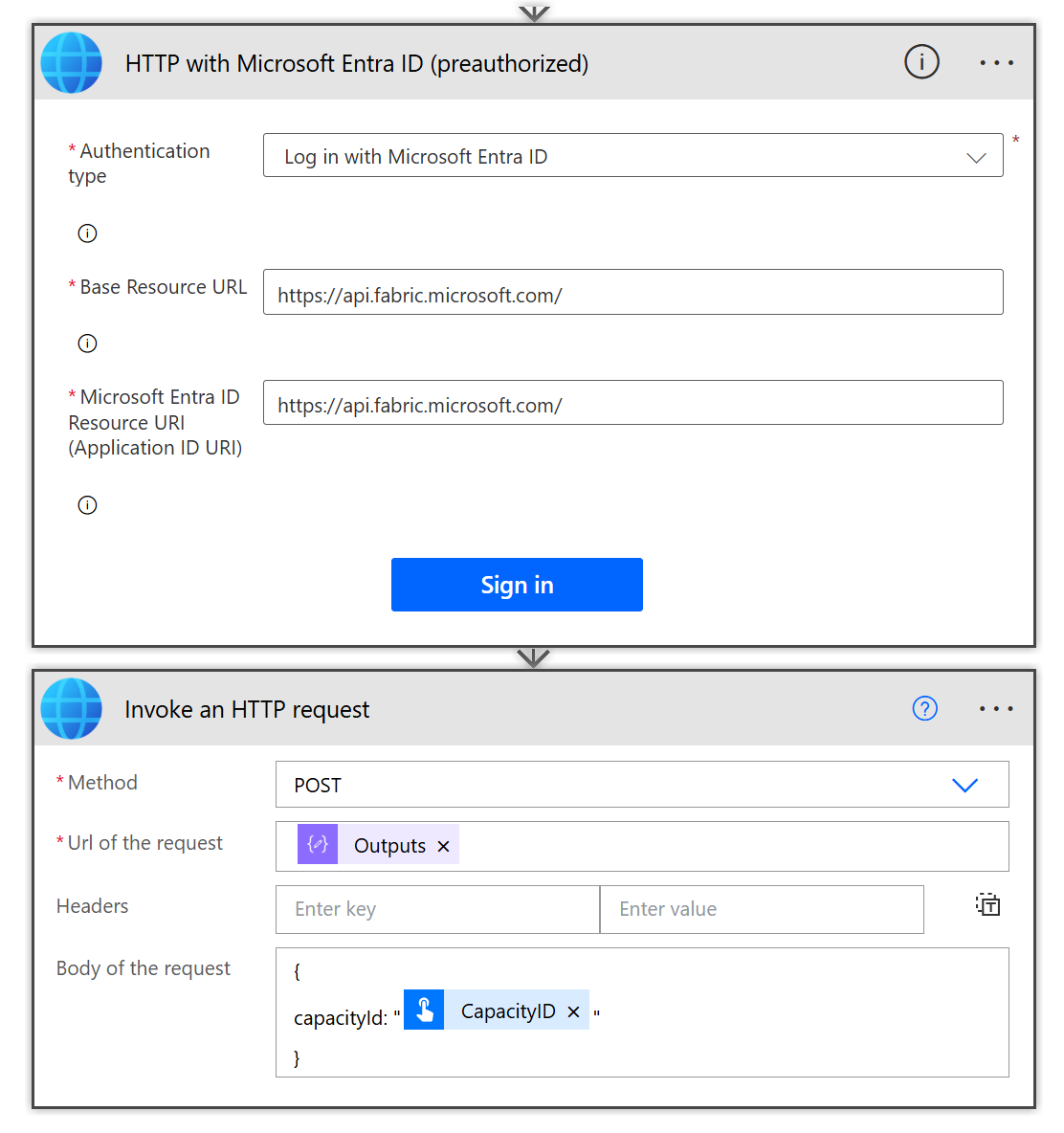
We are going to use a HTTP with Microsoft Entra ID that is preauthorised.
Instructions
- Find and add the HTTP with Microsoft Entra ID action
- If this is the first time using this connection it will prompt for connection details, otherwise skip to 6.
- Select Log in with Microsoft Entra ID as the authentication type.
- For Base Resource URL and Resource URI enter in
https://api.fabric.microsoft.com/- Click Sign and do the stuff to complete the connection and the action appears
- Select POST for the method and the compose output for the Url
- For the body you need to enter in a short JSON statement, see code block below. Text_1 is refering to the second trigger input, it will show as CapacityID once entered.
| |
Testing the flow
The flow is now ready to be tested. Make sure you have the workspace and capacity ids ready.
Instructions1. 1. 1. 1. 1.