TMDL is short for Tabular Model Definition Language in Power BI desktop. It allows us to script definitions and changes to a Power BI model. In this post I use TMDL to quickly create a calendar for a report that includes column options such as sort by, formatting and hidden columns.
Calendar Table
Nearly every report I create includes a calendar table. Every Power BI introduction course I run I send delegates to SQLBI site to grab the code for a simple calendar. Using a few example exercises I explain column sorting for the months, hiding the columns used for sorting and formatting the date columns. Tasks we all do every new report.
Just to be clear the code I usually use comes from one of these links, in this post I’ve used the second one.
https://www.sqlbi.com/articles/creating-a-simple-date-table-in-dax/
https://www.sqlbi.com/articles/using-generate-and-row-instead-of-addcolumns-in-dax/
Turning on TMDL View
At the point of publishing this post (Jun 2025) TMDL view is still in preview so it need be turned on. From the File tab select, Options and settings and then Options to open the dialog. Then under Preview features put a tick next to TMDL view. This will add a new button on the top left views menu.
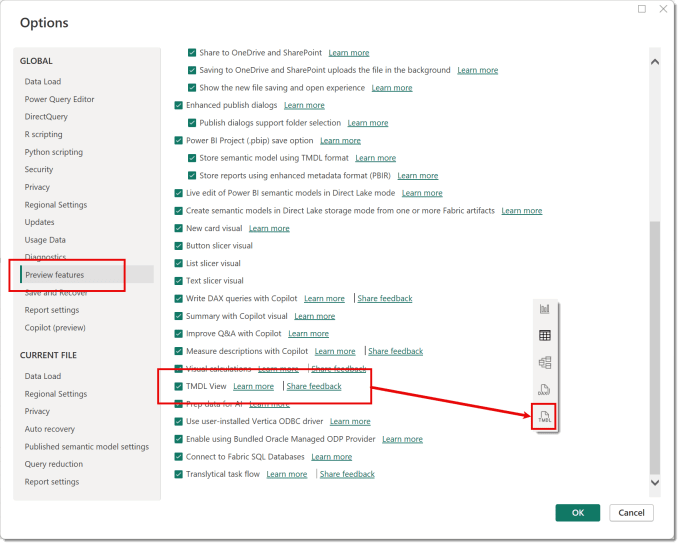
TMDL View
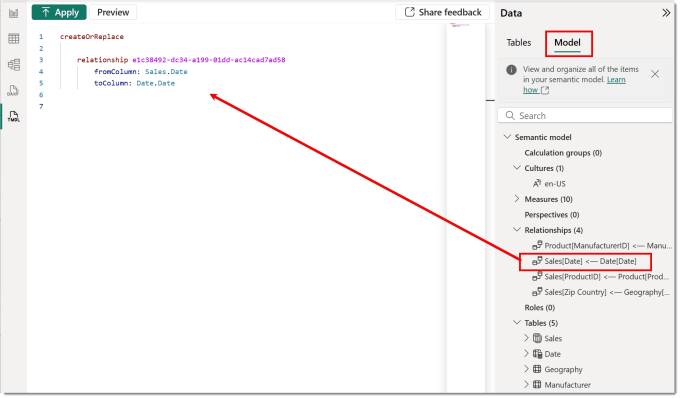
This view allows you to define tables, columns, relationships and measures. You can drag a Power BI item into the view from the data pane to see the definition. Bu this post is not to teach TMDL but to show one use of it. More information can be found at https://learn.microsoft.com/en-us/power-bi/transform-model/desktop-tmdl-view
Adding the Calendar
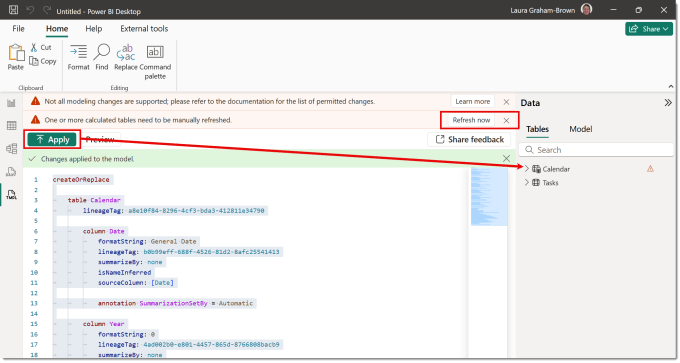
Another use is to use code to create a calendar table. I created the original code by creating calendar in a report and making all the adjustments I would usually do and then dragged the calendar table onto the TMDL window. So now the code includes the adjustments mentioned at the start of this post. Then I go to a report without a calendar and paste in the code below in the TMDL view. Then click Apply. The table will appear in the Data pane but possibly with red exclamation mark. There also might be a message stating a calculated table needs refreshing. If that appears click the Refresh now button that appears.
| |
The report now has a calendar table matching your original calendar.
Conclusion
Being able to use TMDL will allow me to build a library of code snippets to quickly build the report elements I regularly build. This is an exciting extra tool for the toolbox. I have already started a github library of snippets I think will be useful. Not ready to make that public yet but I will.