The Issue
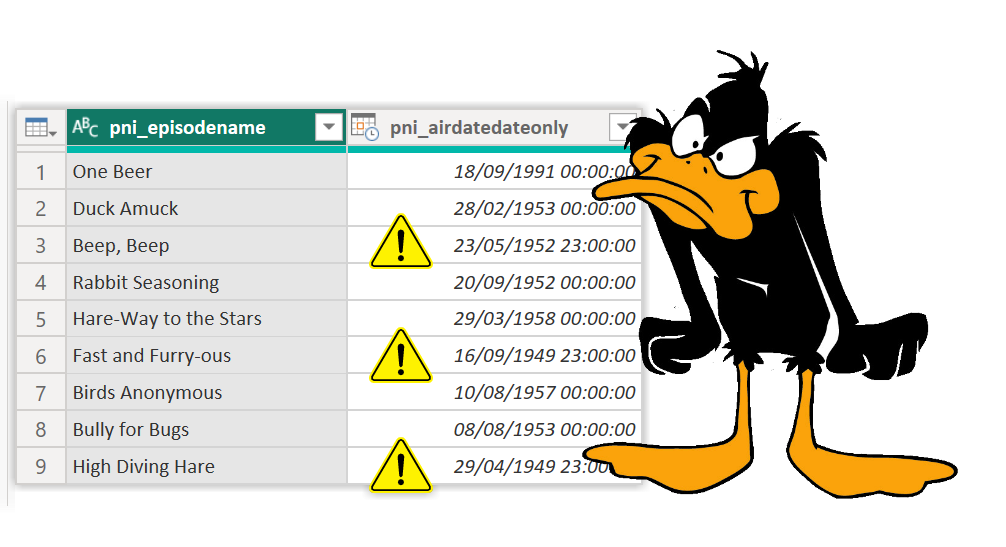
I came across a problem when pulling data from Dataverse that some Date columns actually were date time columns. In the table below we can see a list of Looney Tune episodes with their air date (Thanks to Will Johnson for the data!) Three of the episodes show a date with a time of 11pm, for example Beep, Beep 23/05/1952 11pm, it should be 24/05/1952.
This is due to summer time. Recording just a date, is recording a date with a midnight time, but a date with a midnight time in the summer is actually 11pm the day before!
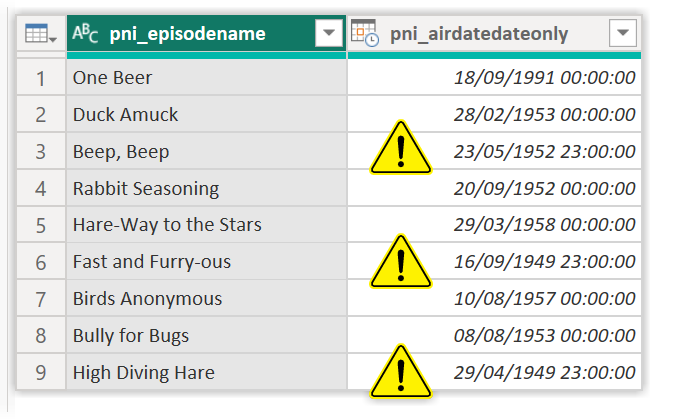
Good practice would be to reduce a date time column to just a date, but that would make the air dates incorrect for some of the episodes.
The Fix
The short version of the fix is add an hour to all the rows and then round down to just a date. The incorrect ones would go to midnight, the correct ones would go to 1am but that would get resolved when the column is converted to date.
M Code Answer
For those who just want the code here is the answer in M, I’m assuming you can add a step in M.
| |
For non-M coders
M is a weird language so don’t feel bad if the above looks foul. Here is my walk through of how I teach people to do the above.
We want to add an hour but when we look on the Transform ribbon there is no option to do arithmetics to a datetime column. That only happens if we have a numeric column. So our plan is to add a numeric column, add 1 to it from the ribbon and from that work out the pattern and edit what it gives.
Instructions
- On the Add Column ribbon click Custom Column
- Leave the column name as Custom and just put in 1 as the formula and click OK.
- You now have a column of 1, select it.
- On the transform ribbon, click Standard and select Add
- In the dialog enter in 1.
- You now have a column of 2.
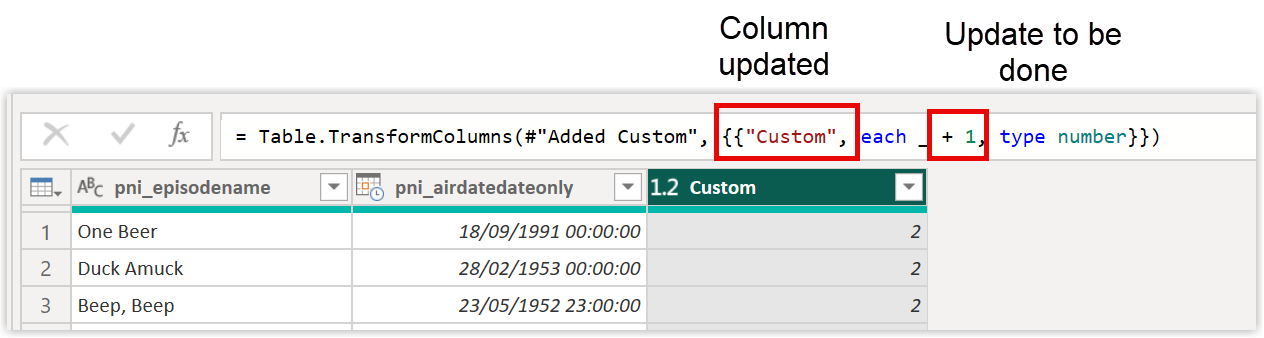
These steps have given us a line of M code that add a number to a column. We just need to change that line to add to a different column and to add an hour instead.
Prefix
| |
The column name we can type in, for me that is pni_airdatedateonly. The + 1 needs to become + 1 hour which we enter using the #duration(0,1,0,0) function. The 4 parameters are day, hour, minute and second.
Fixed Code
| |
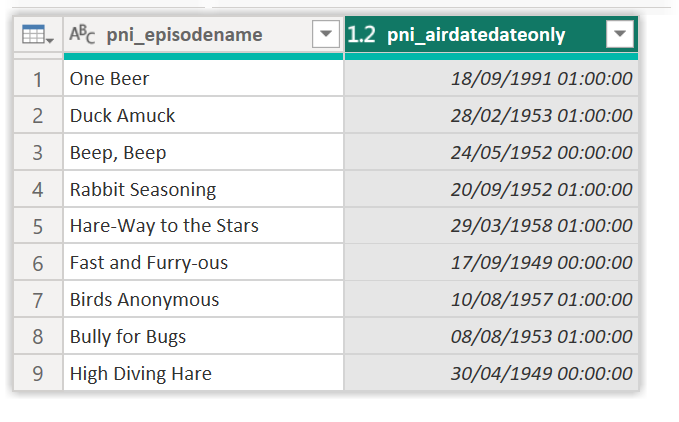
Then we can make the column be date format and it all works. We should remove the Added Custom step from the query in the query settings pane tp get rid of our column of 1s.
Here is my fixed data.
Conclusion
M is not pretty or low code. No-one claimed it was, but the Power Query editor can help if you know how to make it help you. Do I wish we could just do that from the interface? Oh yes!