Most dataflows needs to have scheduled refresh setup so that the data will be up to date ready for the reports connecting to it. This post walks through the basic steps to set up the refresh.
Dataflow Series
This post is part of a series on dataflows.
- Create a Dataflow
- Set up Dataflow Refresh
- Endorsement
- Diagram View
- Refresh History
- Create Dataflow from Export JSON File
YouTube Version
Setup Scheduled Refresh
In the workspace containing the dataflow, there is no Next Refresh on the dataflow. Therefore the dataflow will not refresh automatically.

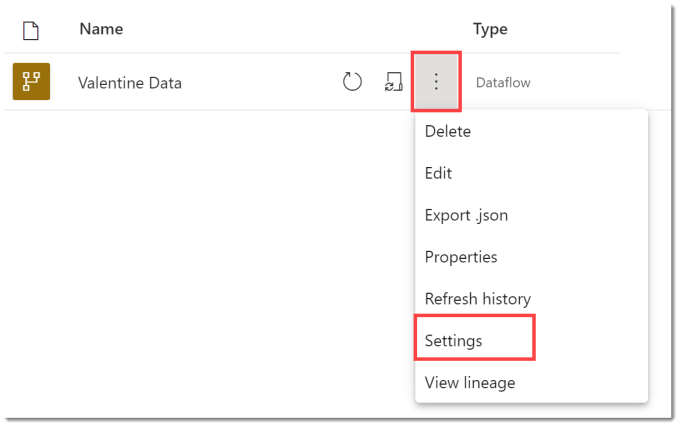
Click on the three dots on the dataflow row, they appear when your mouse hovers over the row. Select Settings from the options.
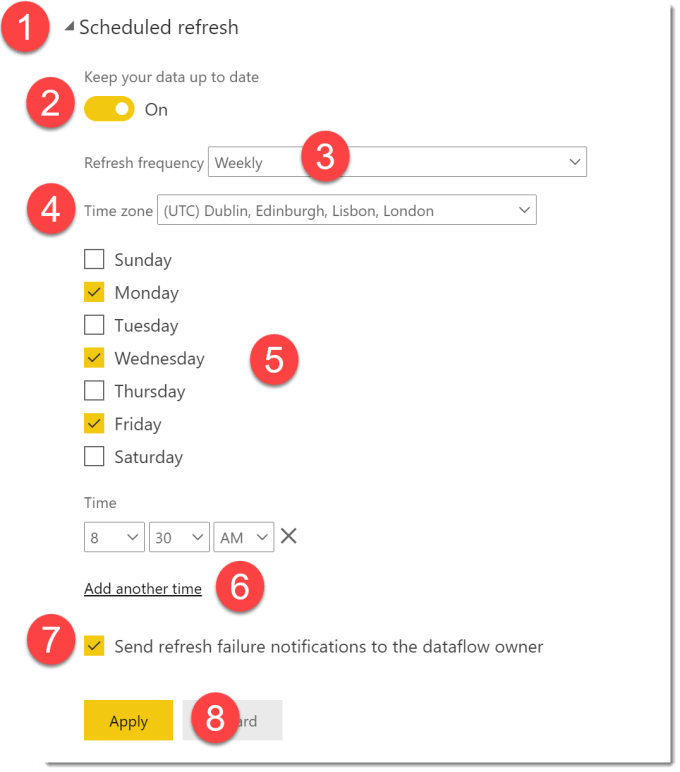
Expand Scheduled refresh.
Click on the toggle to turn on scheduled refresh.
Select refresh frequency, daily means every day, weekly means you can select which day of the week.
Select your time zone.
If you have selected weekly, select days.
Click on Add another time and enter the hour, minutes and am or pm for every time you want the refresh to happen.
Leave the tick so you you will be notified if the dataflow refresh fails.
Click Apply.
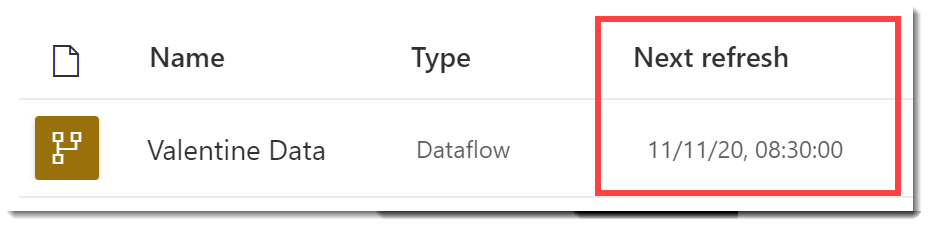
Once the above has been completed, we can now return to the workspace. The dataflow now has a Next Refresh date and time for next Wednesday at 8:30am.

Conclusion
It always fascinates me how people are not confident in setting up the refreshes of datasets and dataflows. Hopefully this quick simple guide will give enough confidence to setup the refreshes to happen without people logging into Power BI to refresh the dataset or dataflow manually.