
I have a Fabric capacity I use for demos, write this blog and to learn. I am forever forgetting to turn it off. For companies this could be that dev or training capacity that is pay as you go and should only be on when its required. This is a simple cost saving automation. For this post I am assuming you are the capacity admin so therefore can pause and resume it manually.
Capacity Details
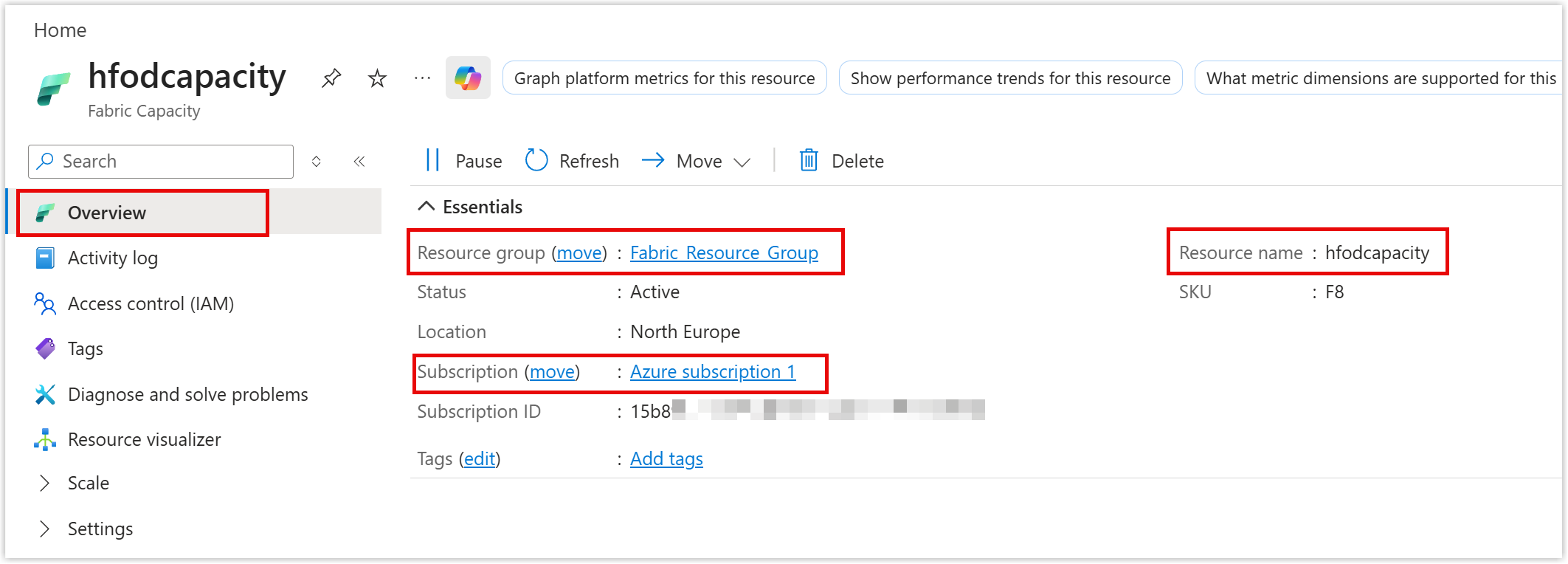
Power Automate is going to want certain details in order to know which capacity you are referencing. Head to the azure portal and find your capacity. You will need three details from the Overview page.
- Subscription
- Resource group
- Resource Name
Create the Flow
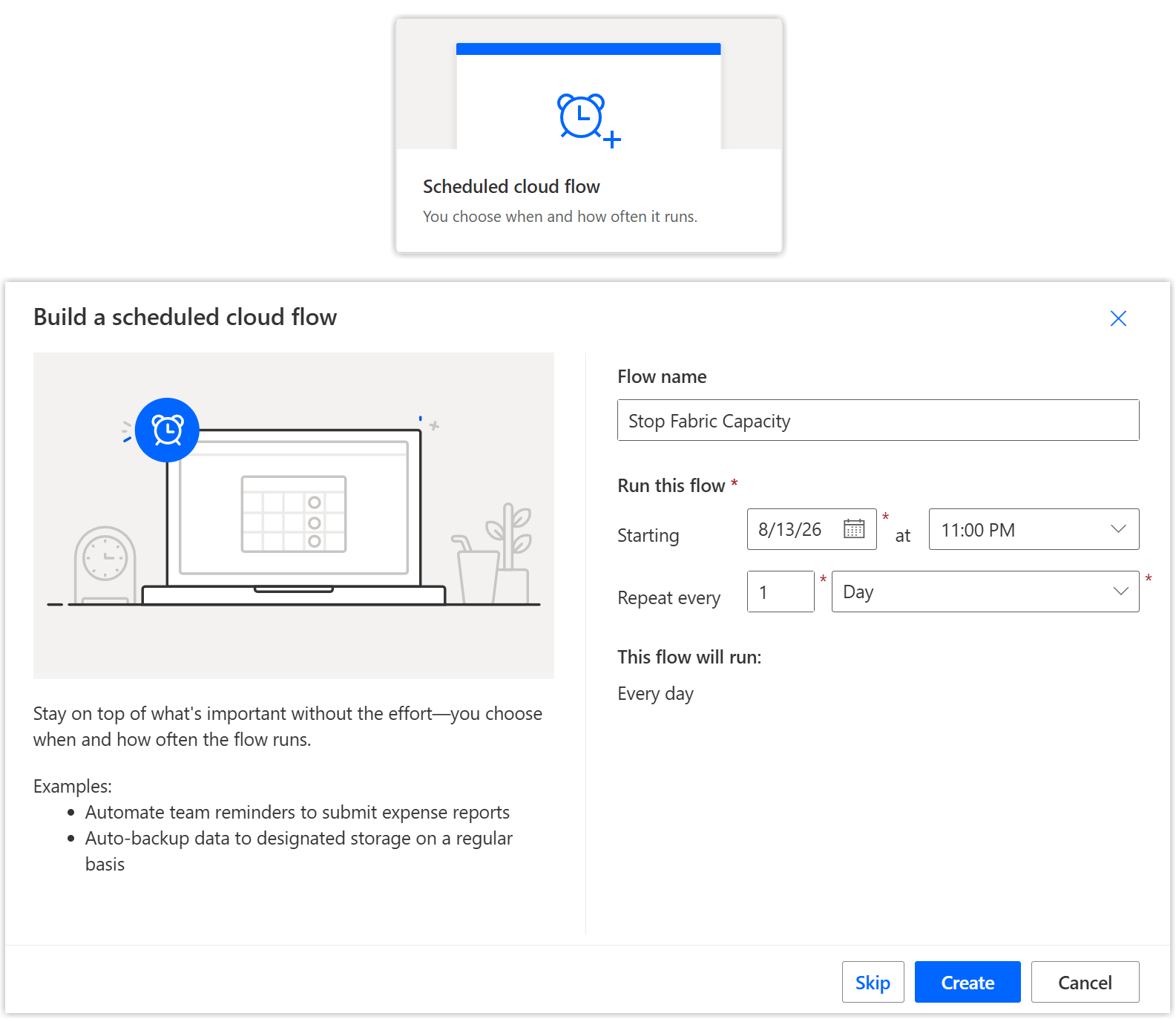
In Power Automate we are going to create a scheduled flow that runs at 2am UK time that checks the status of the capacity and if it is not paused we will pause it. First step is to create the flow with a trigger.
Instructions
- Go to https://make.powerautomate.com/
- Click in + Create on the left hand side menu
- Select Scheduled cloud flow
- Enter in a name for your flow
- Enter in the time, eg 11pm and the repeat eg 1 day
- Click Create
Check Capacity Status
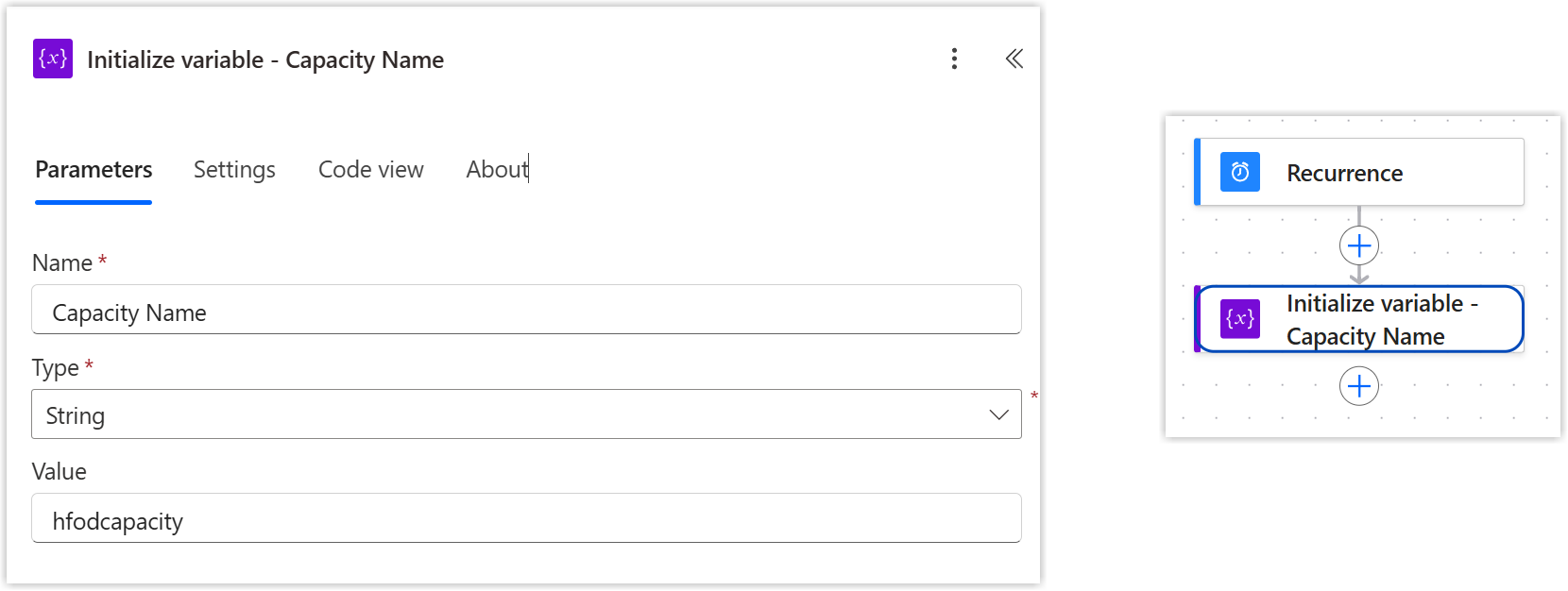
This opens up the flow editor with your trigger at the top. Next we are going to add a step to save the name of our capacity and then a step to check on the current status
Instructions
- Add a initialize variable step
- Enter in a name for the variable, eg Capacity Name and Select String for the Type.
- Put the name of the capacity, which we found earlier, as the value.
- Remember to rename your step, future you will thank you.
Instructions
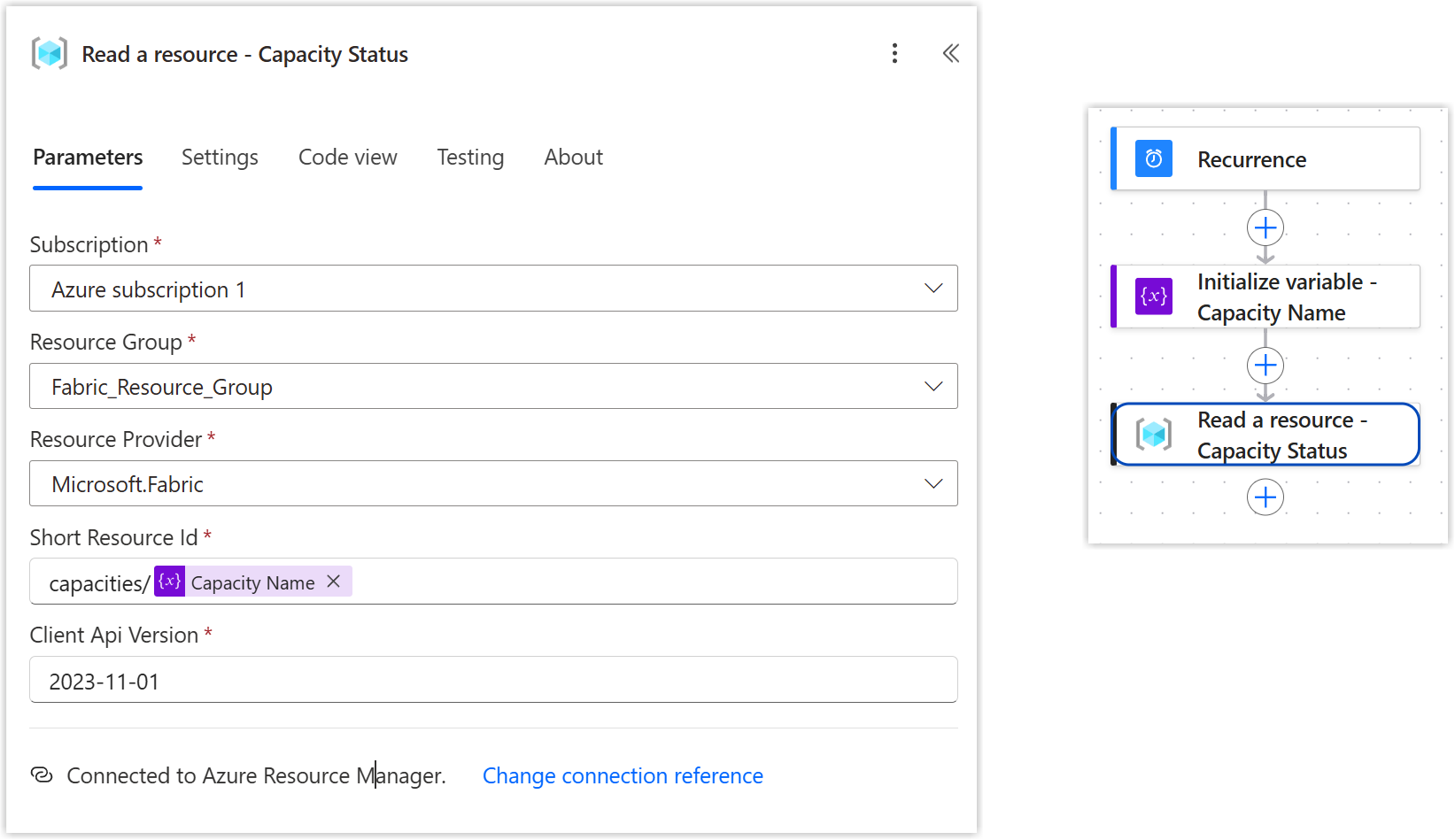
- Add an action from the Azure Resource Manager called Read a Resource
- If this is the first time using this connector, login using OAuth.
- From the drop downs select the matching Subscription and Resource Group
- For the Resource Provider, select Microsoft.Fabric
- Into Short Resource Id put in capacities/ followed by the variable Capacity Name we initialised earlier.
- Client Api Version is 2023-11-01, got from the documentation in the resources below.
- Remember to rename your step
Test it
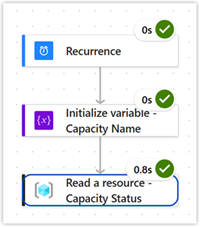
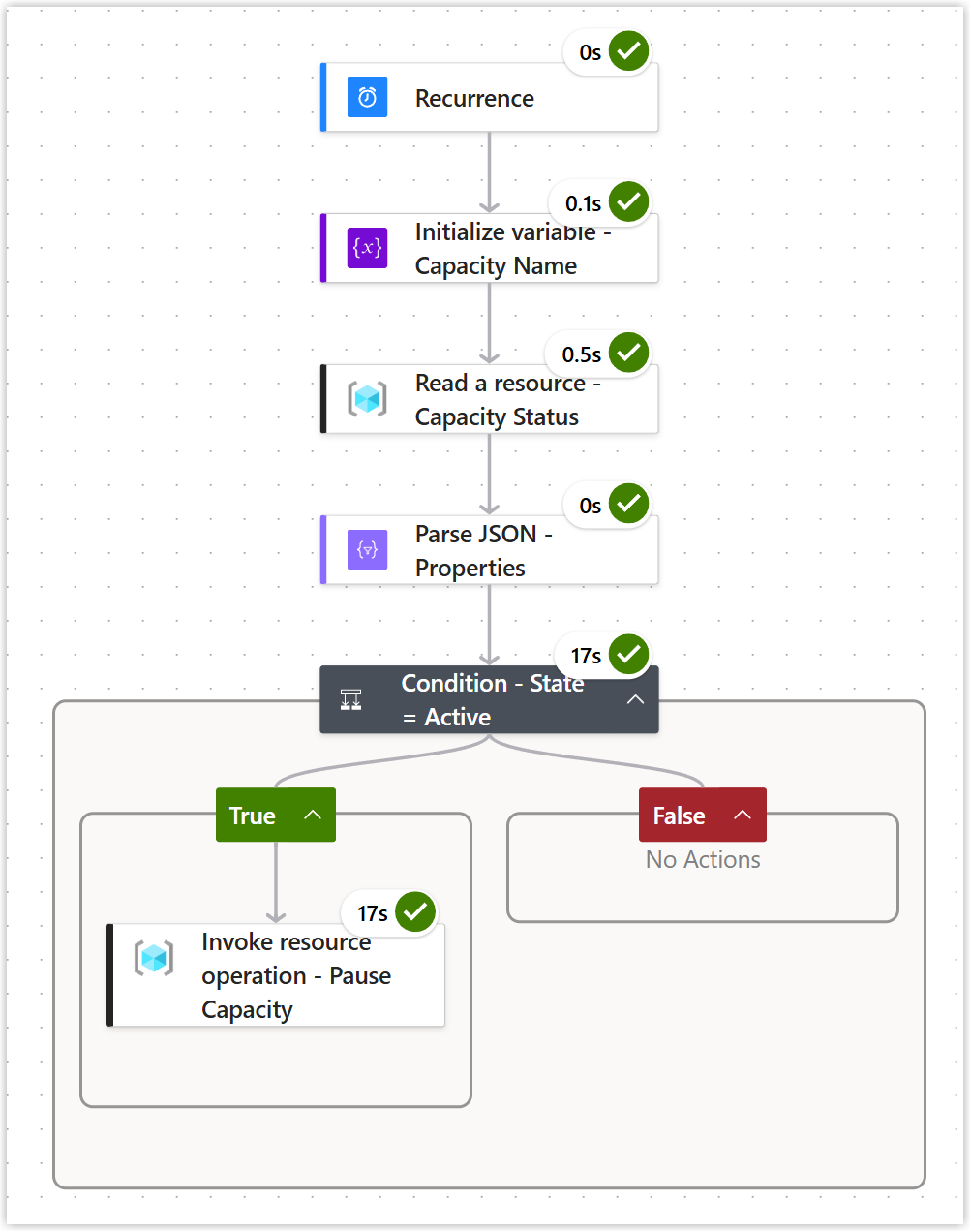
You are now ready to do the first test run. Don’t worry about the output of the steps, we just want to see the three green ticks.
Parse the Answer
From the read a resource step all we want to know is the status of the capacity. That piece of information is buried in nested Json. We could drill down to find that multiple ways, my favourite is using a Parse JSON step but to make this work we need to do a compose first.
Instructions
- Add a compose step to your flow
- In the inputs, select dynamic content.
- Read a resource step will only show 6 values, click see more(25) to see the rest.
- Select Properties
- Rename your flow 1
- Run the flow
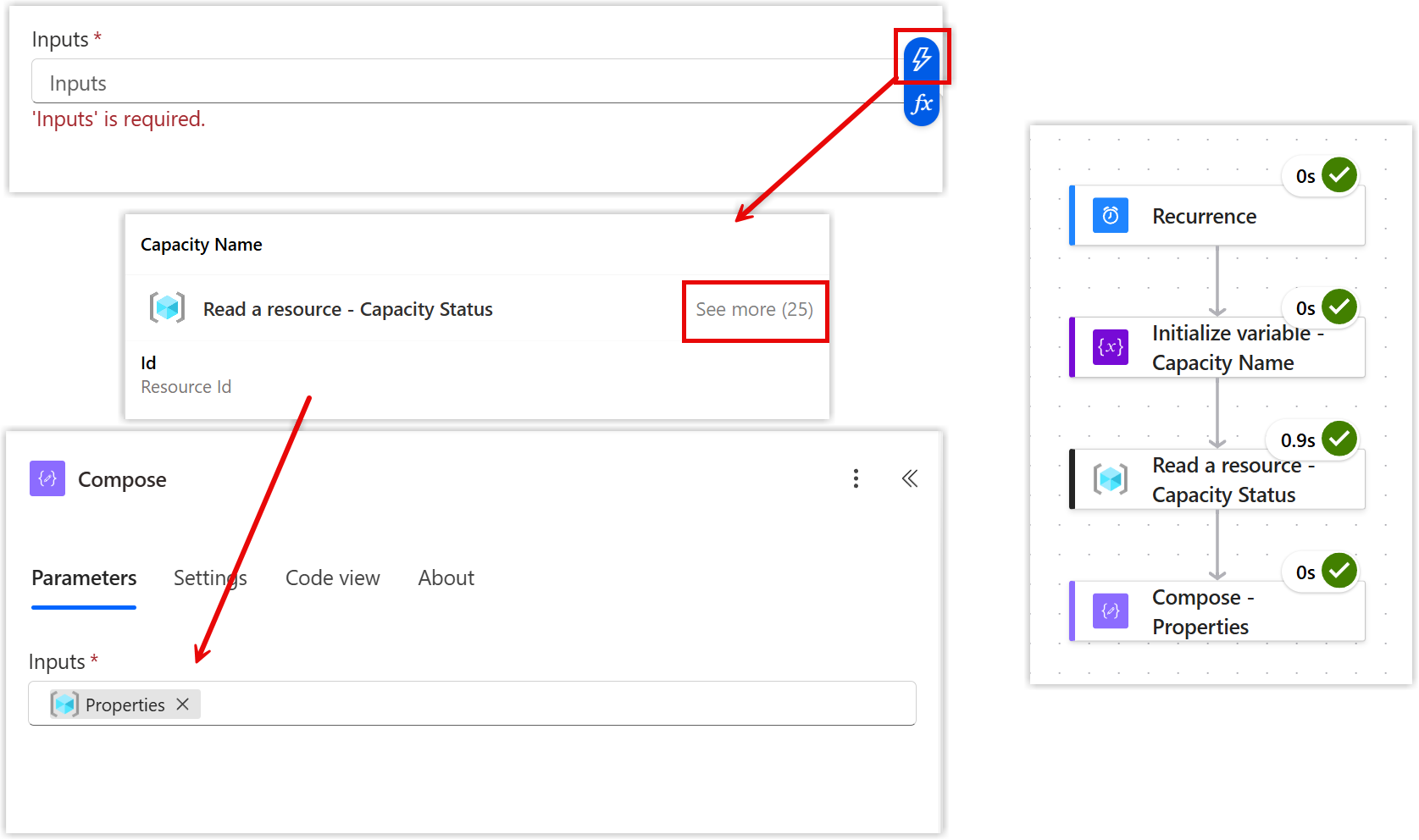
Running the compose step will give us the JSON we need to create the schema in the Parse JSON step. This is a pattern I use all the time.
Instructions
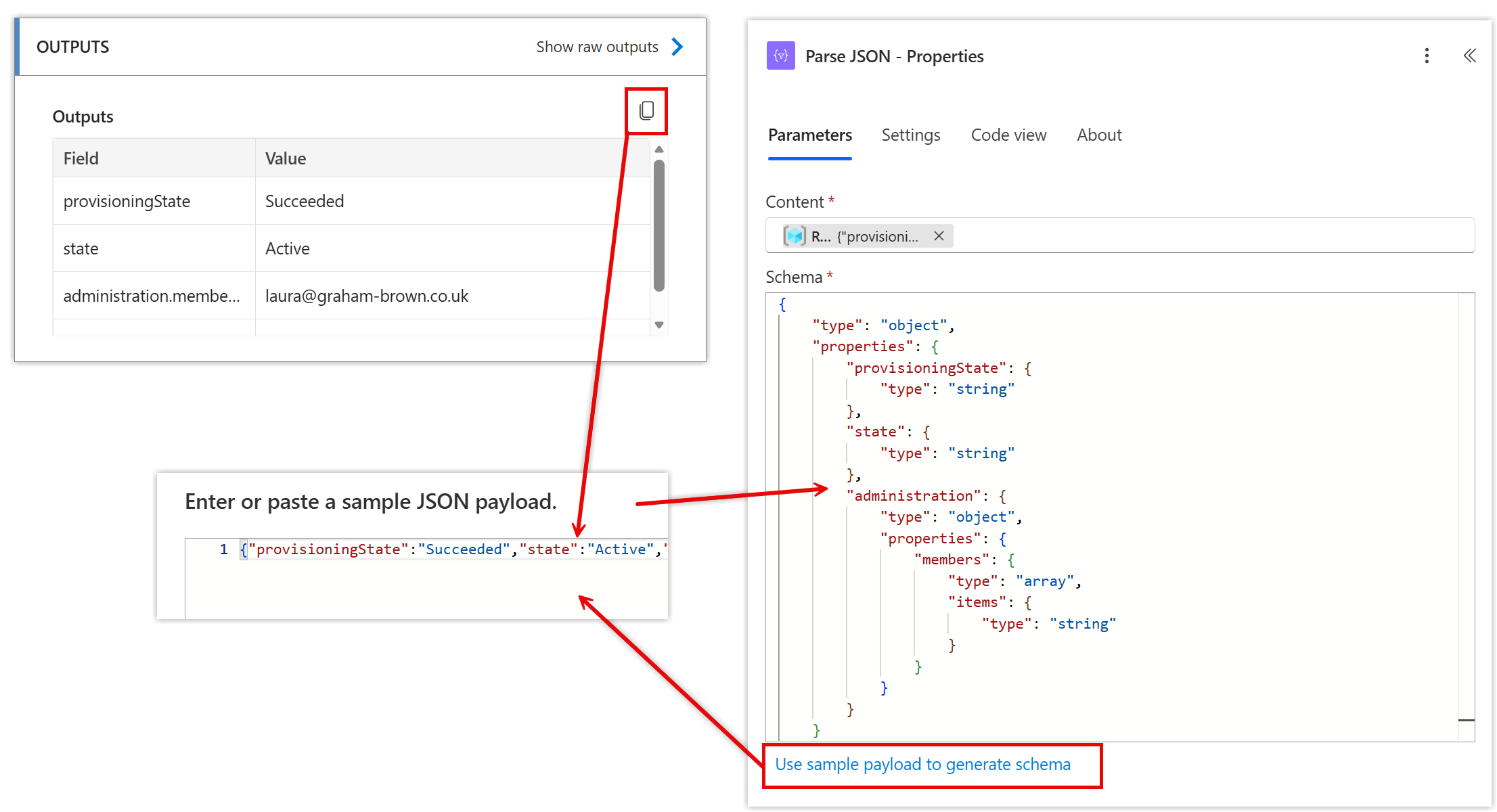
- In the run results, click on the Compose step.
- In the Outputs click on the copy button
- Edit you flow and add a Parse JSON step
- In the Content add the same Properties you added to the compose
- Below the schema box, click on Use sample payload to generate schema
- Into the dialog paste the output from the run and click Done. This will have populated the schema box
- Do that rename magic
- Run the flow.
- If the run was successful you can delete the compose step. It is no longer required.
Turn it Off
The Parse JSON step will have fetched us the State in an easy form to use in dynamic content. The next step is to check to see if it is Active and if so pause the capacity.
Instructions
- Add a Condition step from the Control Connector
- In the Choose a value box, click on dynamic content and then select Body state from the Parse JSON list.
- Select “is equal to” as the operator
- Type in Active as the value
- Rename :)
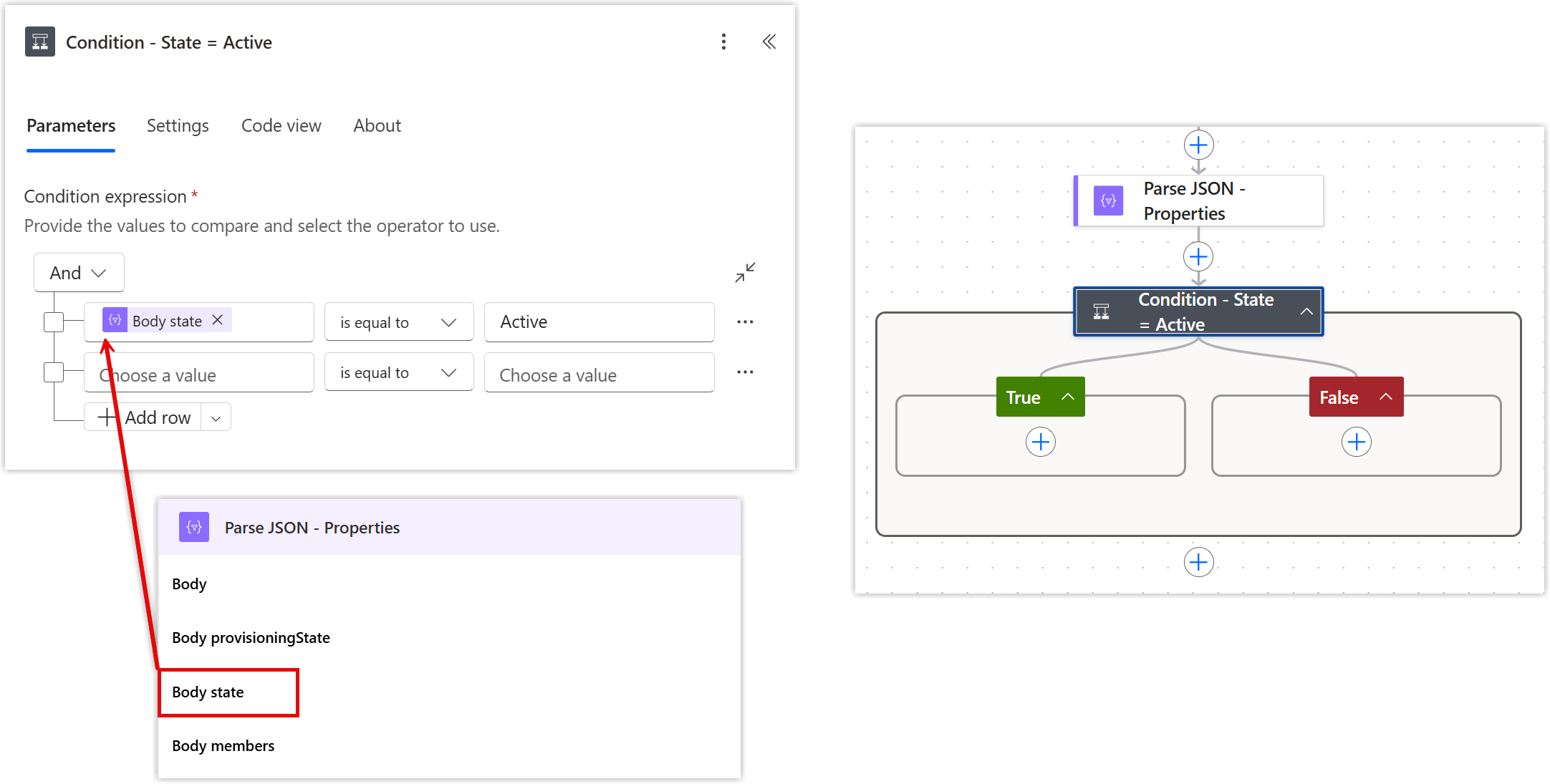
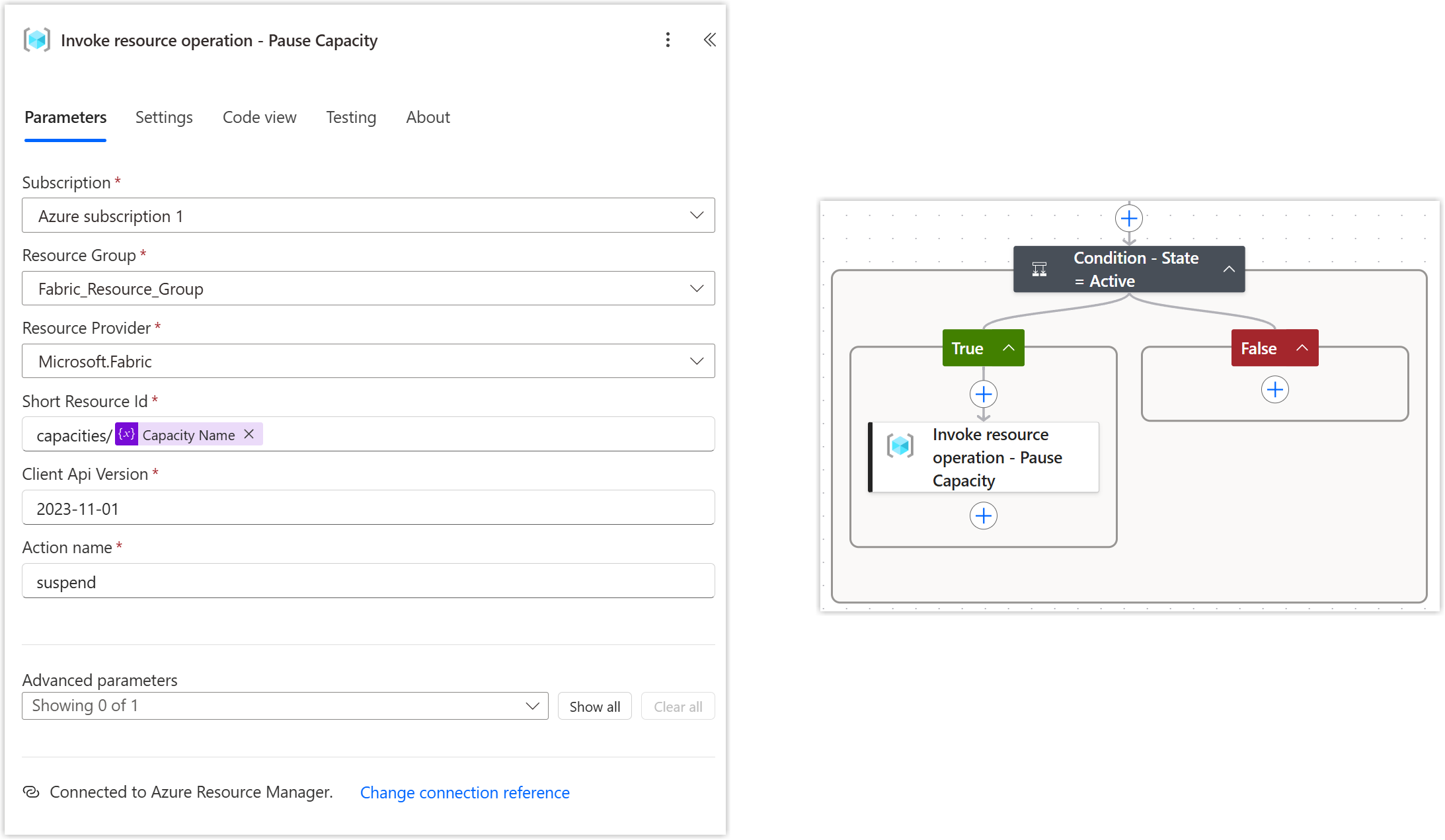
You will now have a condition action with two parts True and False. We want to add an action to the True side to turn out capacity off.
Instructions
- Click on the plus in the True side of the condition
- Select Invoke resource operation from Azure Resource Manager
- Similar to the previous time select Subscription, Resource Group and Resource Provider.
- The Short Resource Id and Client Api Version are also the same
- The action name is suspend.
- You will now have an action, of course renamed, in the True side of the condition.
Test it
Now the flow is complete. Make sure the capacity is Active and do a test run and see if it has been paused. It is also worth checking a second run on with it already paused that it doesn’t try to do it again.
Use Cases and Turning it back on
For me this flow is a real simple turn of my demo fabric capacity every evening. Within a company this could be a capacity that is for a single process, when that process is complete turn off the capacity. Of course that probably means you need a similar flow to activate the capacity again. The action name for that is Resume. See the resources for more details.
Resources
- Microsoft Learn - Fabric Capacities - Suspend
- Microsoft Learn - Power Automate Connector - Azure Resource Manager
Conclusion
This post was to solve a particular problem for me and my capacity, Which unlike most capacities spends most of its time paused. But there are examples in business when we need to automate firing up a capacity, possibly moving a workspace to it and then reversing that.
If this was to be a enterprise production flow I would expect there to be a try catch finally pattern used. It could also be made more re-usable by parametrising the subscription and resource group ids and the capacity name and making this a child flow.
Footnotes
Yes I nag you to rename steps, future you will thank you. I promise ↩︎