Power BI reports can be an important part of a Power Platform solution. Microsoft has added a new feature to Power Platform Solutions to add a Power BI dataset and report. Then you can add the Power BI report in as a dashboard or as an embedded report in a form and add context filtering. Part 1 will cover adding...
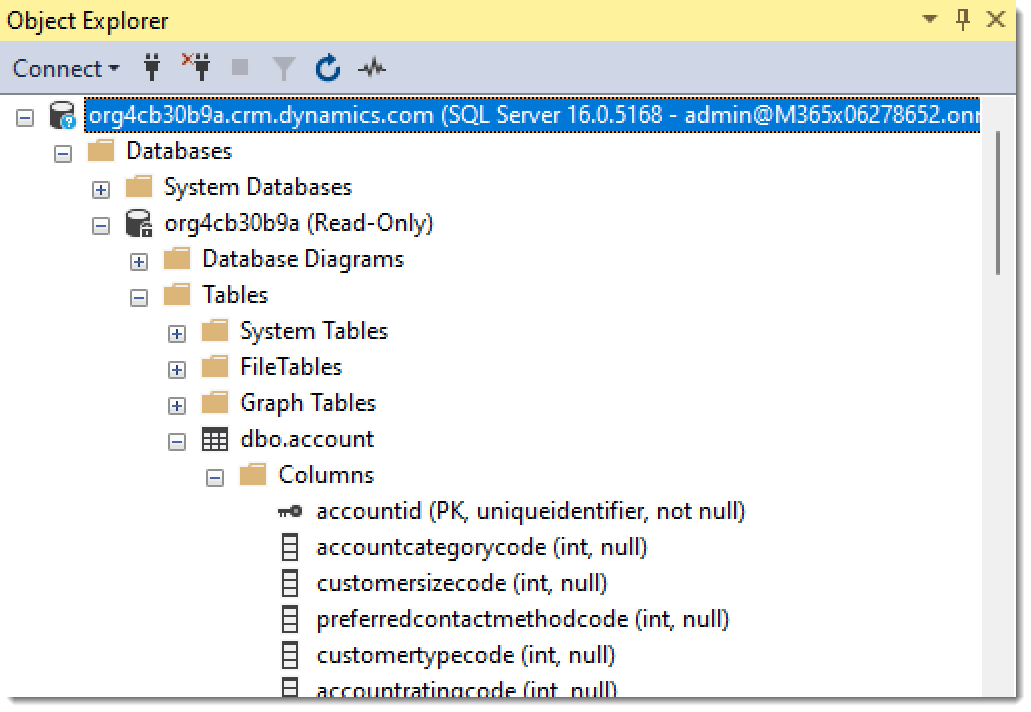
SQL (Structured Query Language) has been used to get data in and out of databases for decades. Dataverse is a database. So lets use SQL on Dataverse to fetch data into a report. This can simplify our queries and make a direct query report easier to write. YouTube Version Microsoft SQL Server Management Studio There are multiple tools available to...
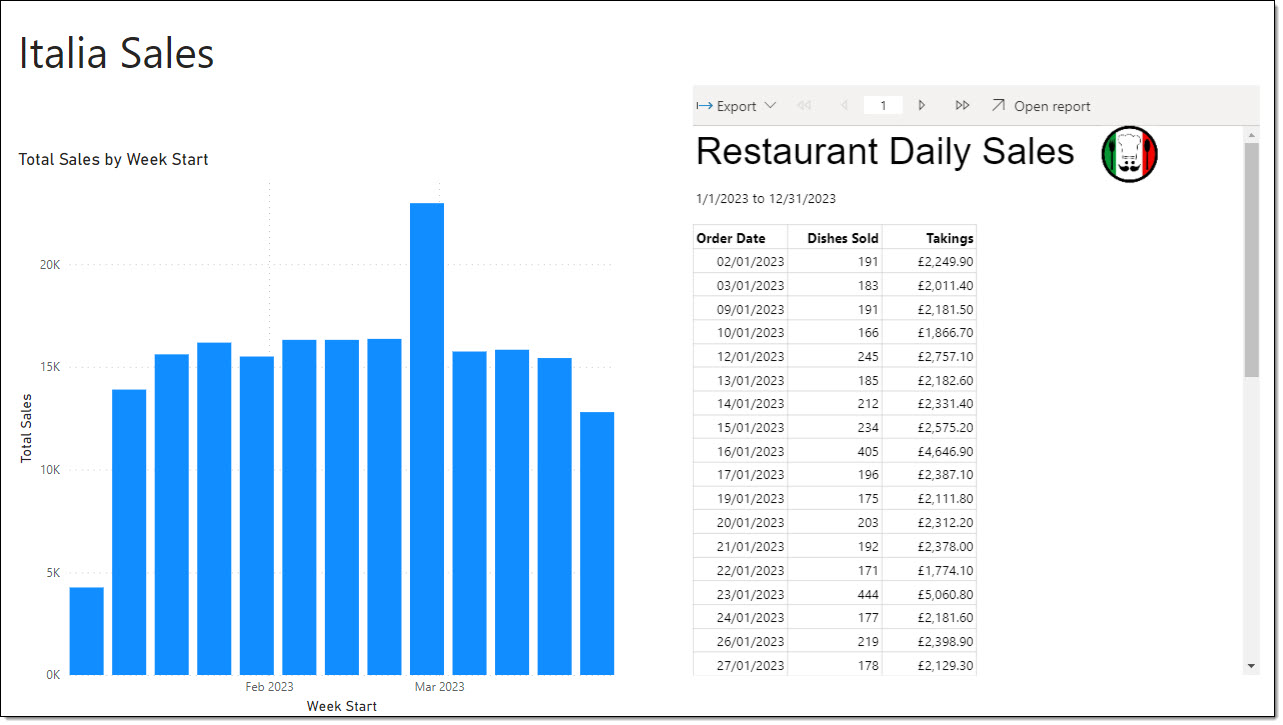
Within a Power BI report you can embed a paginated report. Values can be passed to the paginated report to populate parameters. The paginated report can be exported by a report consumer. YouTube Version Paginated Report For this post we are going to use a paginated report connected to restaurant sales data. The report shows daily total dishes sold and...
The March 2023 Power BI update included a new button, Clear All Slicers. This allows you very quickly add a reset on a report for the slicers. It partly replaces the previous method explained in https://hatfullofdata.blog/power-bi-reset-slicers-with-a-bookmark-button/ YouTube Version Adding the Button Head to the Insert ribbon and under Buttons select “Clear all slicers”. Nothing else needs to be done, although...
So you’ve found Power BI, you’ve created amazing reports that answer every question your business has. Yet when you look at the stats your reports are not being looked at. People are still returning to the old spreadsheets and creating their own pie charts. What has gone wrong with your Power BI adoption? You might have adopted Power BI but...
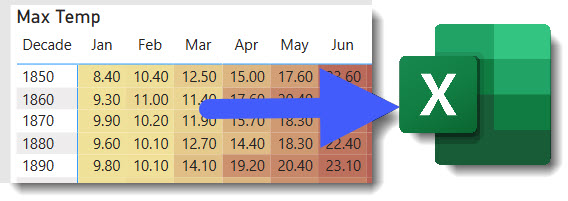
We have to accept that the business will want to export Power BI data into Excel. This post explores the options.
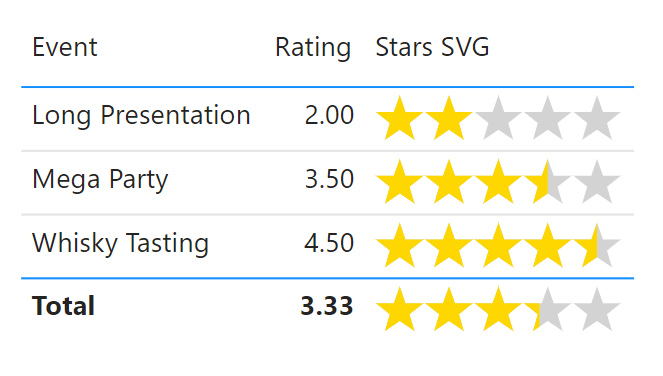
In the Feb 2023 Power BI Update they introduced image width in a table formatting. This means SVG images now don’t have to be square, so we can now do rectangle images. So I ported Stars SVG code I had in my Power Apps series and added this post to my Power BI SVG series For this post we are...
People change jobs, move projects so that dataset is no longer part of their job. So another accounts need to take over that dataset.
Power BI has a Google Analytics connector. This blog post is to walk through building a simple report on my blog visitors.
Occasionally you need to change to point to a different tenancy which means changing a connector to switch Dataverse tenancy.