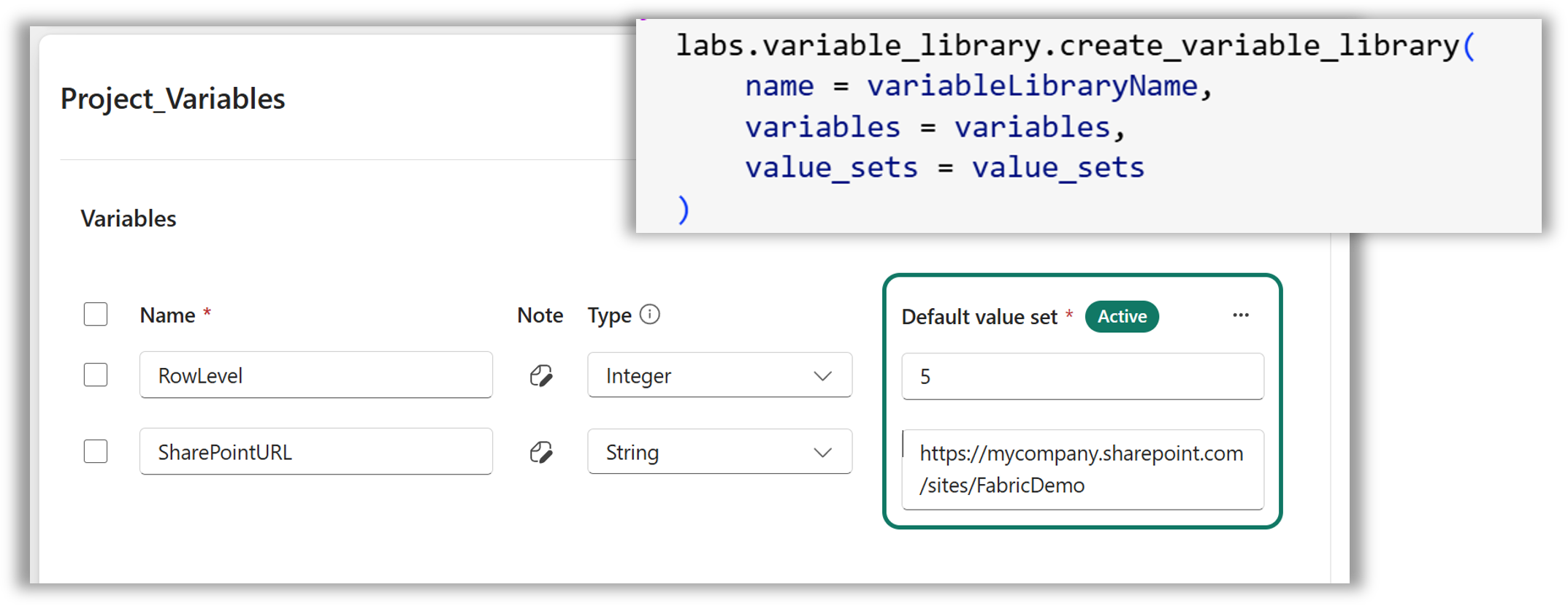
So in order to do my variable library series and demos for workshops I’ve had to build by hand quite a few variable libraries and I got bored. Then by chance I came across Sempy-Labs updating values in a variable library. So after exploring for a bit and finally getting some code to work, I wrote this blog post as my notes.
Variable Library Series
Variable libraries should be part of every project. This post is part of my series to help get you started creating the library and then using the variables and finally seeing your hard work pay back when it comes to deployment pipelines.
- Getting started with variable libraries
- Variable Values in a Fabric Notebook
- Variable Values in a Data Pipeline
- Variable Values in Lakehouse Shortcuts
- Variable Values in Dataflows
- Variable Libraries in Deployment Pipelines
- Create a Variable Library using a Python Notebook
Semantic Link Labs
Semantic Link Labs is a Python library to extend the capabilities of Semantic Link. Semantic Link allows you to link into a semantic model from a notebook. Its a separate library and offers plenty of opportunities to make changes to Microsoft Fabric from within a notebook.
Here are some references
NoteAll of the code in this post can be run using a Python Kernel notebook. You don’t have to use PySpark.
Loading the Library
The library is called sempy_labs and we want the sub-module variable_library. It is not one of the default libraries installed so it usually cannot just be imported so there a good possibility you need to use a %pip statement to install it into your environment. So we try an import and if that fails with ModuleNotFoundError we use the %pip command to install.
In short the loading library code block should be this and we can then use variable_library.create_variable_library
| |
Create Empty Library
Stage one is to create an empty variable library. For this all we need a variable library name, for the variables and value sets we will start with empty dictionaries. So our code is as follows
| |
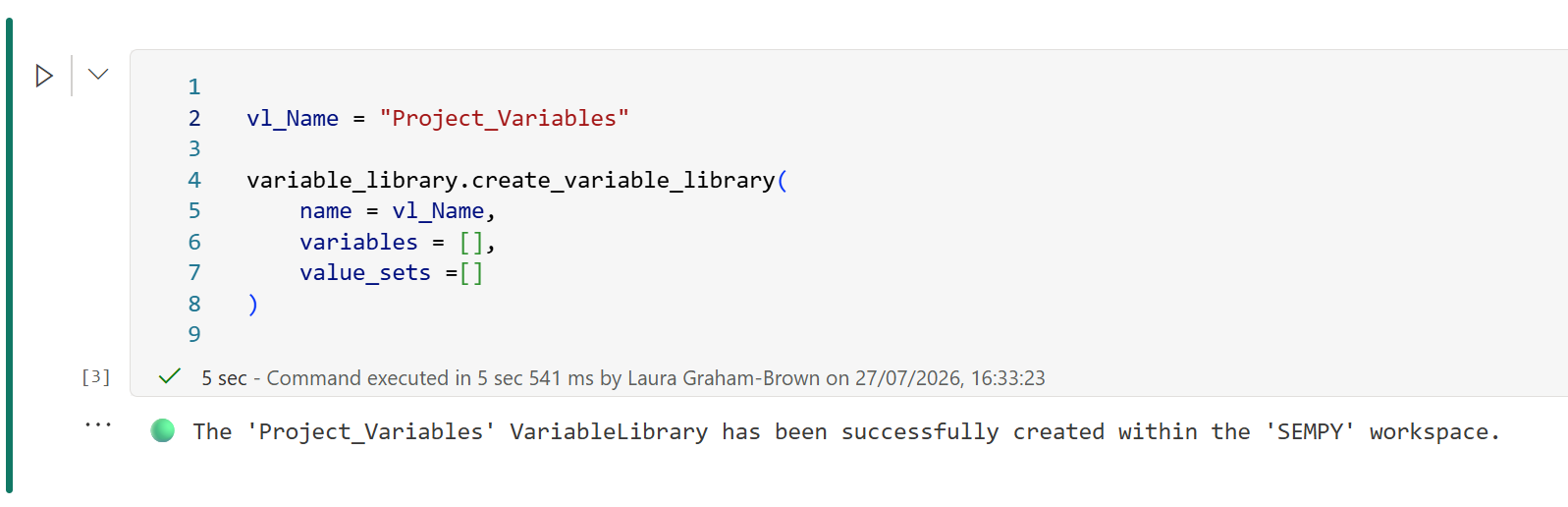
When the code runs we should get a confirmation message to say it was created. We would have also added a description and a workspace plus folder name. With no workspace specified the workspace of the notebook is used.
Adding Variables
The variable library created by the above code is empty. The Sempy-Labs library does not currently have a method to edit the definition so we have to add the variables and value sets at creation.
So we need to create a dictionary for the variable definitions.
 1vl_Name = "Project_Variables"
 2
 3variables = [
 4    {
 5        "name":"RowLevel",
 6        "note":"How many rows of data",
 7        "type":"Integer",
 8        "value":5
 9    },
10    {
11        "name":"SharePointURL",
12        "type":"String",
13        "value":"https://mycompany.sharepoint.com/sites/FabricDemo"
14    }
15]
16
17variable_library.create_variable_library(
18    name = vl_Name,
19    variables = variables,
20    value_sets = []
21)
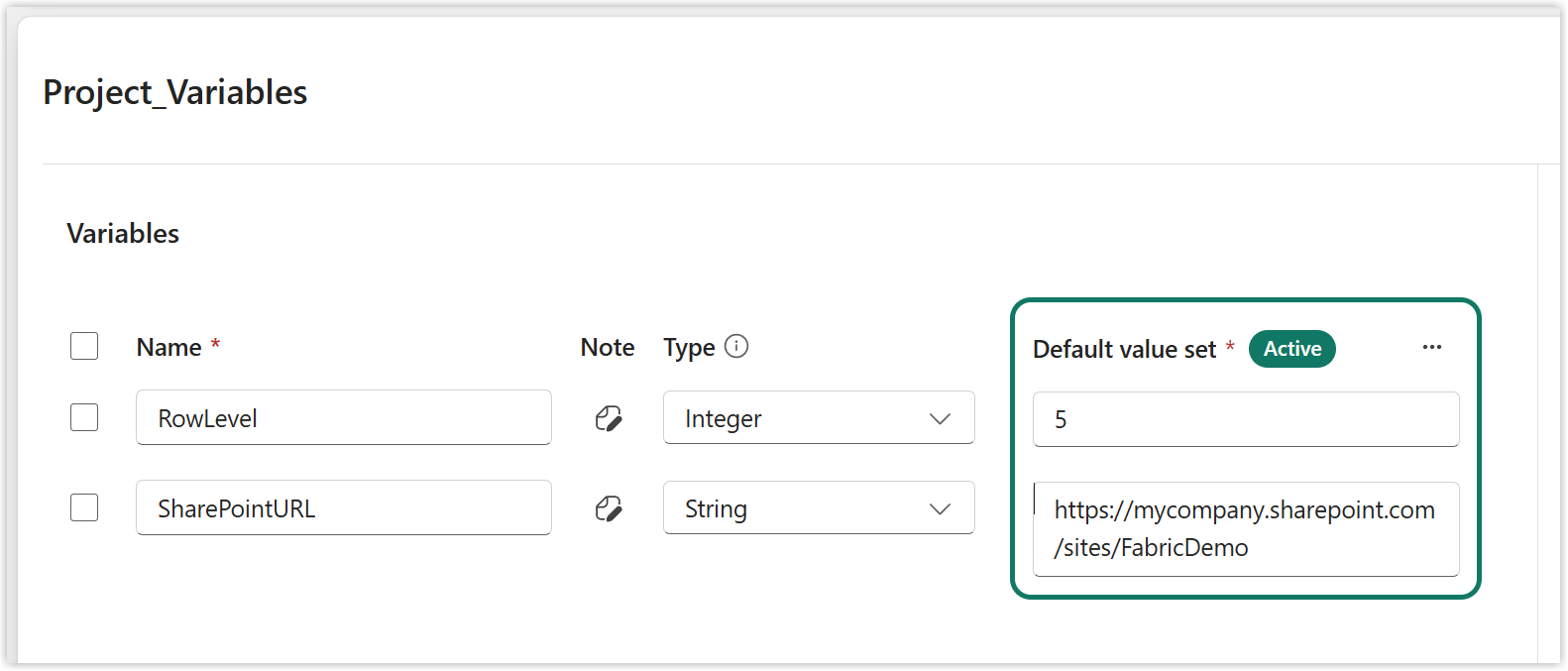
The note value is optional, name, type and value are required. So we the variables definition before the create and we get a library with 2 variables.
Adding Value Sets
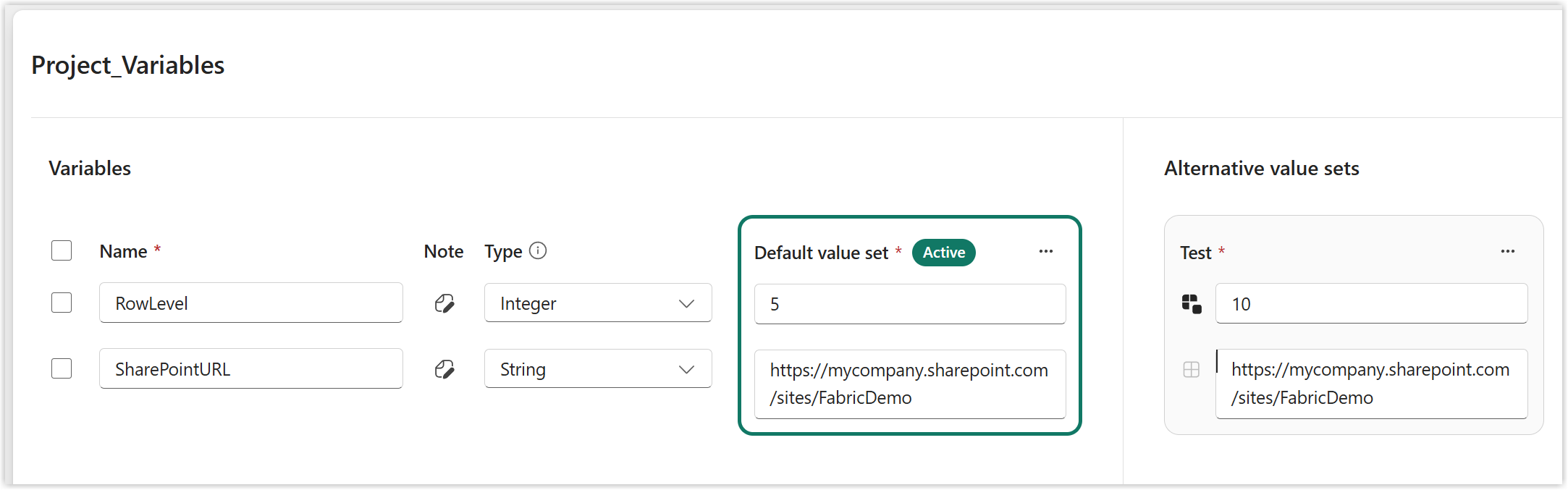
The next obvious step is to add value sets. The definition for value sets includes a name and a list of the variable overrides. For example we might have a Test value set where the RowLevel is set to 10 but the SharePointURL stays the same.
 1vl_Name = "Project_Variables"
 2
 3variables = [
 4    {
 5        "name":"RowLevel",
 6        "note":"How many rows of data",
 7        "type":"Integer",
 8        "value":5
 9    },
10    {
11        "name":"SharePointURL",
12        "note":"Full path",
13        "type":"String",
14        "value":"https://mycompany.sharepoint.com/sites/FabricDemo"
15    }
16]
17
18value_sets = [
19    {
20        "name":"Test",
21        "variableOverrides":[
22            {
23                "name":"RowLevel",
24                "value":10
25            }
26        ]
27    }
28]
29
30
31variable_library.create_variable_library(
32    name = vl_Name,
33    variables = variables,
34    value_sets = value_sets
35)
This creates the variable library with one value set called Test which has a different value for RowLevel.
Error Handling
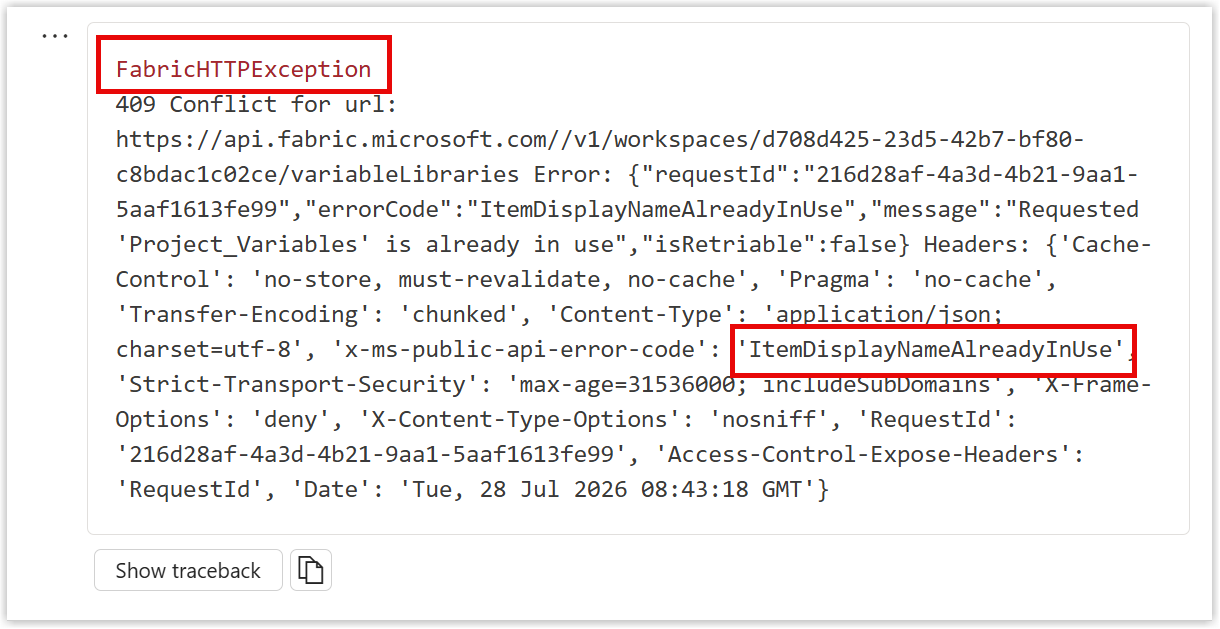
If you run the code twice, not surprisingly the code fails. A library with that name already exists. The error is a FabricHTTPException and buried in the text is the text “ItemDisplayNameAlreadyInUse”.
 1vl_Name = "Project_Variables"
 2
 3variables = [
 4    {
 5        "name":"RowLevel",
 6        "note":"How many rows of data",
 7        "type":"Integer",
 8        "value":5
 9    },
10    {
11        "name":"SharePointURL",
12        "note":"Full path",
13        "type":"String",
14        "value":"https://mycompany.sharepoint.com/sites/FabricDemo"
15    }
16]
17
18value_sets = [
19    {
20        "name":"Test",
21        "variableOverrides":[
22            {
23                "name":"RowLevel",
24                "value":10
25            }
26        ]
27    }
28]
29
30from sempy.fabric.exceptions import FabricHTTPException
31
32try:
33    variable_library.create_variable_library(
34        name = vl_Name,
35        variables = variables,
36        value_sets = value_sets
37    )
38except FabricHTTPException as e:
39    if "ItemDisplayNameAlreadyInUse" in str(e):
40        print(f"❌ {vl_Name} already exists")
41    else:
42        raise
43
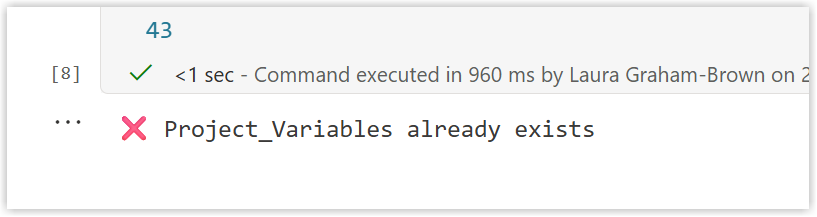
To match that error we need to import it from the sempy library in line 30 and then wrap the create in a try statement. The test to look for ItemDisplayNameAlreadyInUse means a more friendly error message will be displayed.
Conclusion
For me this was a great introduction to the Sempy Labs library. It gives me the possibility to script the setting up of demos. I wish there was a way to update the definition of the library so we could script adding a value set to an existing library and I have put in a request. But for now we can’t via Sempy Labs. We can though via Rest API using this reference Items - Update Variable Library Definition But that would be a whole new blog post!